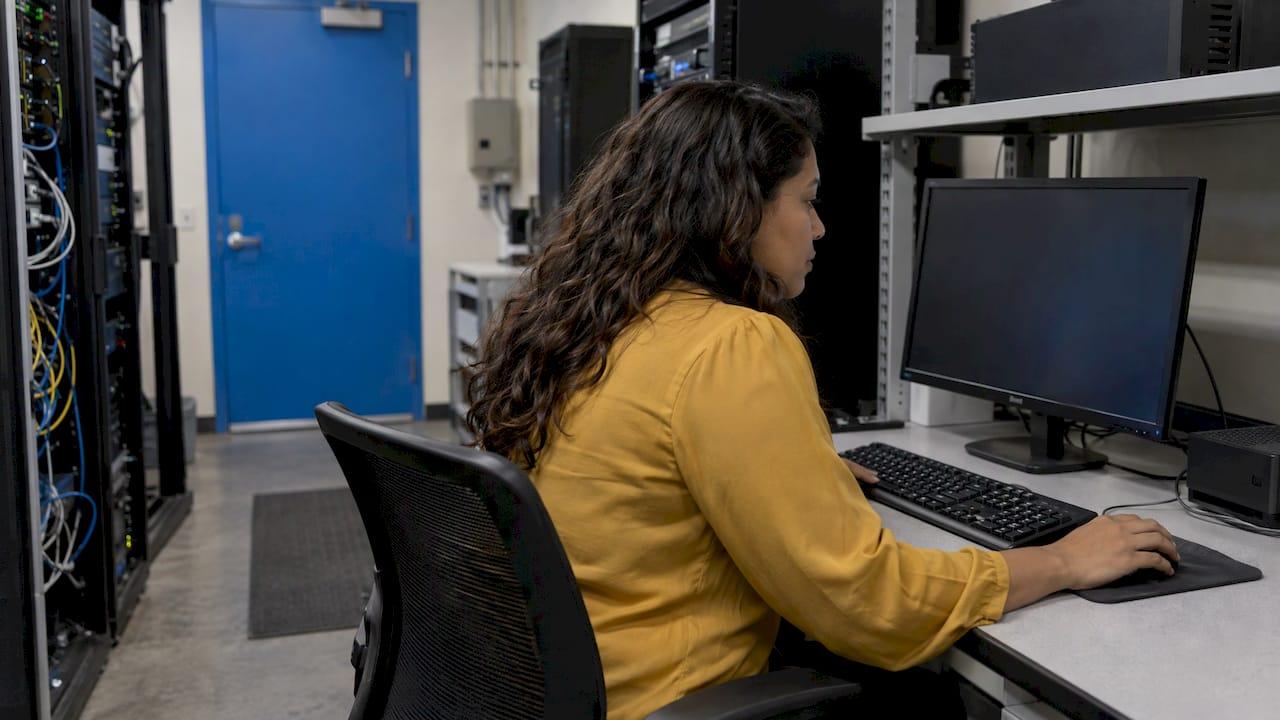
Post-migration support is the work that begins when the cutover ends. It covers verifying that data, email, databases and access all arrived intact, fixing what did not, and putting monitoring and documentation in place so the new environment stays healthy. For a small business, the safest approach is to treat it as a defined phase with an owner and a schedule, not a vague promise of "help if something breaks." A managed IT provider such as Secure Techies can own that phase and keep it going after the first week.
This guide is for owners and managers of small and mid-size businesses, including medical practices, law firms, banks and mortgage companies, who have just moved email to Microsoft 365 or Google Workspace, upgraded a SQL Server, or shifted applications to the cloud.
TL;DR
- Post-migration support should run in stages: critical checks in the first hours, deeper integrity checks within a day, and business-logic checks within about three days.
- For email moves, verify send and receive, calendars, mobile devices and SPF, DKIM and DMARC records before you retire the old system.
- For SQL databases, test every application that used the old server, remap orphaned users and confirm backups run on the new one.
- Regulated businesses must also confirm access rights, audit logs and encryption, and remove temporary migration permissions.
- Assign every open issue a named owner and a decision date, and keep the old environment available until you have signed off.
Table of Contents
- What post-migration support covers
- A 72-hour schedule for post-migration checks
- Email migration to Microsoft 365 or Google Workspace
- SQL databases for banks and mortgage companies
- Security and compliance after the move
- Monitoring after cutover
- Documentation, training and handoff
- Who should own post-migration support
- Promo: support that continues after the migration
- Our perspective
- FAQ
- Sources
What post-migration support covers
A migration is complete when the business works normally on the new platform, not when the last file copies. Support after the move has four jobs:
- Validation: confirming that what arrived matches what left.
- Remediation: fixing mismatches, broken integrations and access problems.
- Hardening: removing temporary permissions, enforcing modern sign-in, and confirming backups and monitoring.
- Handoff: documenting the new setup and training users so the same problems do not return.
Vendors that publish migration documentation describe the same pattern. Atlassian, for example, says its team assists with or completes validation checks and post-migration tasks agreed in a run-book after the move. The lesson for any business is to agree before cutover what the post-move tasks are, and who does each one.
A 72-hour schedule for post-migration checks
Checking everything at once leads to missed items. A tiered timeline, such as the hour-1, hour-24 and hour-72 approach in Rework's April 2026 audit guide, keeps the order sensible. Here is a version adapted for a small business.
Hour 1: critical checks before users are fully back
- Record counts by type (mailboxes, contacts, customer records, loan files, matters) match the source, or every difference is explained.
- Primary keys and required fields are complete.
- Migration logs are scanned for failed or skipped items.
- Administrators and a few pilot users can sign in.
Hour 24: integrity checks
- Look for duplicates created by automation or sync jobs that have run overnight.
- Confirm scheduled jobs, backups and monitoring alerts ran.
- Collect the first round of user problems: missing folders, shared mailboxes that do not open, printers and scanners that cannot send mail.
Hour 72: business-logic checks
- Reports that leadership uses (pipeline, aging, loan status, billing) match pre-migration snapshots.
- Routing rules, approvals and integrations behave as before.
- Open issues are classified as corrected, accepted, excluded or unresolved, each with a named owner and a target date. This mirrors the sign-off approach in ONES' 2026 guidance for business owners.
The mistake to avoid is discovering late that comparison was never possible because keys or mappings were not prepared. BladePipe's verification guidance recommends staging checks at each point where a mismatch becomes more expensive to fix, starting before cutover.
Email migration to Microsoft 365 or Google Workspace
Email is where users notice problems first. It is also where small errors, such as a wrong DNS record, quietly damage deliverability for weeks.
Routing and sign-in
During a cutover to Exchange Online, mail sent to migrated users keeps routing to the old server until the MX record is changed. Confirm the MX change has propagated and that every user can both send and receive, including shared mailboxes and distribution lists.
Then check modern sign-in. Microsoft has disabled Basic authentication for most Exchange Online protocols, and its updated SMTP AUTH timeline says Basic authentication for SMTP AUTH will be disabled by default for existing tenants at the end of December 2026, though administrators can still enable it. Scanners, multifunction printers, line-of-business applications and older mail clients are the usual casualties. List every device and application that sends mail and test each.

Authentication records
After the move, confirm that SPF, DKIM and DMARC are published and aligned with the new platform. SPF lists which servers may send for your domain, DKIM signs messages, and DMARC tells receivers what to do when a message fails both. Without them, invoices and client messages can land in spam. Our SPF and DMARC record generator and the DMARC, SPF and DKIM setup guide walk through the records.

Google Workspace specifics
Google's Workspace Migrate documentation lists behaviors that look like data loss but are not:
- Attachments over 25 MB are moved to Google Drive, with a link left in the message.
- Deleted messages land in Gmail Trash and are removed after 30 days.
- Exchange folders become Gmail labels, with a limit of 5,000 labels per mailbox.
- Message counts can differ because duplicates across folders are merged into labels.
Because totals can legitimately differ, compare patterns in the migration logs and audit sample mailboxes rather than relying on raw counts.
Calendars, files and mobile devices
Test recurring meetings, calendar sharing, room and equipment booking, and delegate access. Confirm OneDrive or Drive sync, SharePoint or shared drive permissions, and that phones and tablets are enrolled and receiving mail. Sample several mailboxes per batch, covering recent mail, old mail, large attachments, recurring invites and contacts with multiple addresses.
Keep the old system until sign-off
Keep the source environment read-only and reachable until the rollback window closes. Cancel old licenses and archive source data only after verification, in line with your retention policy. Our Microsoft 365 migration case study shows how a completed move looks from the business side, and the Microsoft 365 migration checklist and Google Workspace migration roadmap cover the planning that makes these checks easier.
SQL databases for banks and mortgage companies
For lenders, a database problem is a business problem: pricing, pipeline, servicing and reporting all read from SQL Server. Microsoft's SQL Server upgrade guide states that post-migration tasks are crucial for reconciling data accuracy, verifying completeness and addressing performance, and that every application that used the source database must be tested against the target.
A practical checklist:
- Re-run row-count comparisons per table, then compare checksums on the tables that matter most.
- Run your top business queries (the ones behind daily pipeline, funding and exception reports) on the old and new servers and compare results.
- Test every connected application: loan origination, core integrations, reporting tools and any custom scripts.
- Remap orphaned users. Database users can lose their link to server logins during a move, so logins fail even though the data is fine.
- Take a full backup of the new database and test a restore. Microsoft notes that SQL Server backup compatibility is forward-only, so a backup taken after an upgrade cannot be restored to an older version.
- Confirm scheduled jobs run, including nightly imports, statements and cleanup tasks.
- Review performance against a pre-migration baseline, since query plans can change after a move.
- Confirm the audit trail and access controls on the target.
The same sequence applies to a bank, a mortgage company or a medical billing system. What changes is how much evidence regulators or examiners expect you to keep.
Security and compliance after the move
A migration usually requires temporary power: broad service accounts, relaxed firewall rules, extra admin roles. These need to come out. Close the migration with this list:
- Remove temporary migration permissions and delete migration service accounts.
- Confirm multi-factor authentication applies to every user, including shared and service identities where supported.
- Verify encryption in transit and at rest where it applies.
- Confirm user roles match the intended access, because moving data can unintentionally change permissions.
- Confirm retention policies and legal holds are intact. This matters most for law firms, where a missed hold can become a legal problem.
Healthcare practices and HIPAA
If the migrated systems hold electronic protected health information, the HIPAA Security Rule requires audit controls: mechanisms that record and examine activity in systems that contain or use that information. After a migration, confirm that logging is switched on in the new environment, that logs are retained, and that someone reviews them on a schedule. Document the migration and its checks, since a written record is part of showing due diligence.
Financial firms and law firms
Banks, mortgage companies and advisers should confirm that the new environment matches their written security policies, and that records subject to retention rules survived the move. One caution for email: Google describes its Exchange Online migration tool as a productivity feature, not one designed for legal compliance, so a regulated business should verify retention and archival separately after the move rather than assume it carried over.
Monitoring after cutover
Data can drift after a migration, as schemas change and integrations are adjusted. Validation works best as a loop: checks during the migration, thorough checks afterward, then continuous monitoring with alerts. Airbyte's guidance describes dashboards for row-count changes and failed checksums as the way to turn validation into an ongoing control. The same logic applies to servers and endpoints: you want alerts on failed backups, disk space, sign-in anomalies and mail flow before users report them. For teams building dashboards on top of their data, this overview of real-time data monitoring benefits explains why continuous visibility catches problems earlier than periodic reviews.
Documentation, training and handoff
Most repeat problems after a migration come from gaps in what people were told, not from technology. Before you close the project, make sure the following exist:
- A current network and systems diagram: what runs where, who administers it.
- A record of migration decisions: what was excluded, converted or intentionally changed (for example, folders that became labels).
- Known issues list: each with an owner and a decision date.
- User guides on the changes people will notice: new sign-in prompts, where shared files live, how to set up mobile mail.
- A support path: one place to report problems, with expected response times.
- Admin runbooks: how to add a user, reset multi-factor authentication, restore a mailbox or database.
A short training session within the first week, aimed at the three or four things that changed most, prevents more tickets than a long manual. Use early user feedback as a check too: automated tests miss workflow problems such as a macro that depended on an old folder path.
The handoff is also the moment to write down who answers the phone. A managed help desk gives staff that single path, and a provider's onboarding checks show what a well-run handover includes.
Who should own post-migration support
The best candidate is whoever knows both the old and new environments. If a vendor ran the cutover and then disappeared, the business is left holding an unverified system. If an internal person ran it alongside a full-time job, the checks compete with daily work. The checks in this guide are not complicated, but they are numerous, and they have deadlines: users are already working, and the old system's rollback window is closing.
That is why many small businesses assign the phase to their managed IT provider, with a clear scope and a sign-off. Ask for these things in writing:
- The list of checks and their schedule.
- Who fixes issues found, and how fast.
- Which monitoring and backups are in place when the project closes.
- When the old environment is retired, and who approves it.
Promo: support that continues after the migration
Secure Techies provides managed IT services for small and mid-size businesses in Southern California, including Microsoft 365 and Google Workspace email migration and administration, 24/7 monitoring, managed help desk support, and backup and disaster recovery. Our billing is flat-rate and transparent, without long-term contracts, and we support compliance with standards such as HIPAA, GDPR and SOC 2. If you have just migrated, or are planning to, talk to us about managed IT services.
If your migration included new infrastructure or backups, our backup and disaster recovery and compliance and security audit services cover the checks above for regulated environments.
Our perspective
A migration project ends on a date. Your business does not. The most common gap we see in the way companies think about moving systems is treating go-live as the finish line, when it is the point where real use begins.
We believe in a proactive approach: monitoring and verification should be running before anyone calls to say something is wrong. That is why we think of post-migration support as part of managed IT, not as an add-on. The same team that watches your servers, backups and endpoints around the clock is the team best placed to confirm the move worked and to keep it working.
For regulated businesses, this matters even more. A medical practice, law firm or lender needs evidence that access, logging and retention survived the move. Writing that down at the time is far easier than reconstructing it later.
Alex
FAQ
How long should post-migration support last?
The intensive validation window is usually the first 72 hours, followed by a stabilization period in which users report issues and the old environment stays available for rollback. After that, the work shifts to ongoing monitoring, backups and help desk support. Many businesses keep that going under a managed IT agreement.
What should I check first after an email migration?
Check that mail flows in both directions after the MX change, that every user can sign in, and that shared mailboxes and calendars open. Then verify SPF, DKIM and DMARC records so your outgoing mail is not marked as spam. Test scanners, printers and applications that send mail, because they often rely on older sign-in methods.
Why do message counts differ after moving from Exchange to Gmail?
Exchange folders become Gmail labels, and a message that appeared in several folders is merged into one message with several labels. Google's documentation notes this is a normal reason for differing counts. Review the migration logs for errors instead of relying on totals.
What should I do with the old email system?
Keep it read-only and accessible until your rollback window closes and users have confirmed their data is complete. Then archive it according to your retention policy before canceling licenses.
Does a SQL Server move need testing beyond comparing row counts?
Yes. Row counts show that records arrived, not that applications work. Run your key business queries on both servers, test every connected application, remap orphaned users, confirm jobs run and take a full backup you have tested restoring.
Sources
- Roles and responsibilities in the migration process (Atlassian)
- Post-Migration Data Audit: What to Verify and When (Rework)
- What Evidence Should Business Owners Review Before Signing Off a Bulk Data Migration (ONES)
- Data Verification for Migration and Replication (BladePipe)
- Migrate email to Exchange Online using the Exchange cutover method (Microsoft Learn)
- Updated Exchange Online SMTP AUTH Basic Authentication Deprecation Timeline (Microsoft)
- Monitoring points for Exchange, Google Workspace Migrate (Google)
- Upgrade to the Latest Version of SQL Server (Microsoft Learn)
- Summary of the HIPAA Security Rule (HHS)
- Validate Data Integrity After Migration (Airbyte)
- Real-Time Data Monitoring: 9 Business Benefits That Matter