
Match your migration tool to your data source and user count before you touch anything else. For most small and mid-size organizations, the Admin console's data import feature or GWMMO/GWMME handles the job cleanly. If you're moving 1,001 or more users, or juggling Drive, SharePoint, and file shares together, Google Workspace Migrate is the right tool, and it requires Windows server nodes to run.
The next move, regardless of size, is a full data scan. It surfaces permission conflicts, oversized mailboxes, and unsupported file types before they turn into a failed cutover weekend.
- Small teams (under 100 users, standard IMAP/Exchange/PST sources): Admin console import, GWMMO, or GWMME
- Mid-size orgs with mixed sources or moderate complexity: combination of the above, tested in a pilot batch
- 1,001+ users, or Drive/SharePoint/OneDrive/Teams involved: Google Workspace Migrate
- Regulated data (HIPAA, GDPR, SOC 2 scope), zero-downtime requirements, or complex nested permissions: bring in a managed provider like Securetechie
Pro Tip: Run your full data scan even if you think your environment is simple. A 40-person law firm can hide as many permission tangles as a 400-person manufacturer.
Key Takeaways
Matching the migration tool to your data source and user count, then running a full scan before any data moves, prevents most of the failures admins encounter during cutover.
| Point | Details |
|---|---|
| Match tool to org size | Use Admin console import, GWMMO, or GWMME for most small and mid-size migrations; reserve Workspace Migrate for 1,001+ users. |
| Scan before you migrate | A full data scan catches permission and file-type issues weeks before cutover instead of during it. |
| Plan node infrastructure early | Workspace Migrate caps clusters at 40 nodes, and adding capacity mid-migration risks conflicts. |
| Pilot before production | Test a small batch of 5 to 10 users across departments before running the full migration. |
| Bring in Securetechie for regulated moves | Securetechie manages zero-downtime cutovers, compliance verification, and delta sync for HIPAA and GDPR environments. |
Table of Contents
- Which Google Workspace Migration Tool Fits Your Data Source?
- What Are the Steps in a Google Workspace Migration?
- How Long Does a Google Workspace Migration Take?
- What Migration Mistakes Should You Avoid?
- When Should You Bring In a Managed Migration Partner?
- An Editorial Take on Choosing the Right Migration Path
- Get Migration Support From Southern California's Managed IT Team
- Sources
Which Google Workspace Migration Tool Fits Your Data Source?
Google doesn't offer one universal migration tool because no single tool handles every data source well. Instead, the migration product matrix maps each source type to a specific product, and picking the wrong one is the single most common reason migrations stall halfway through.
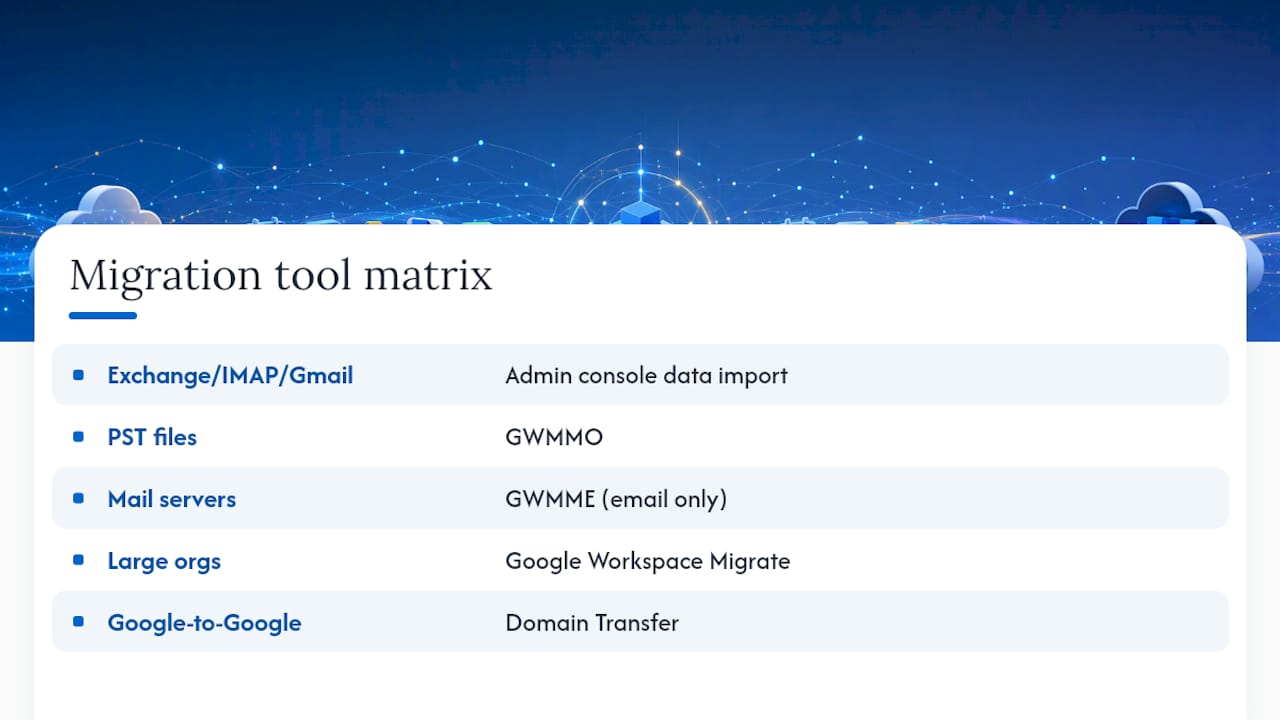
Admin console data import works best for many small and mid-size migrations. It pulls from Exchange Online, IMAP providers, personal Gmail accounts, and other Workspace domains. The tool supports import maps for up to 1,000 users in some flows, and setup typically involves authorizing access and creating a client ID with domain-wide delegation before Gmail-to-Gmail transfers can run.
GWMMO (Google Workspace Migration for Microsoft Outlook) exists specifically for PST files and Outlook profiles, moving email, contacts, and calendars in one pass. It ships as both an .exe and an .msi installer. Use the .exe for individual desktop installs and the .msi when you need to push it across machines via Group Policy or an endpoint management tool.
GWMME (Google Workspace Migration for Microsoft Exchange) handles migrations from nearly any mail server, not just Exchange. The catch: it copies email and labels only, not calendars or contacts, so plan a separate path for those if you need them preserved.
Google Workspace Migrate is the heavy-duty option, built for organizations with 1,001 or more users or workloads spanning Exchange, SharePoint, OneDrive, file shares, and Box simultaneously. It's also the only tool on this list that requires standing up Windows server infrastructure for its worker nodes.

Domain Transfer covers Google-to-Google moves, such as merging two Workspace domains after an acquisition. It's not self-service. Google typically requires coordination with its sales or consulting teams to execute it, which makes it faster in some respects but gives you far less granular control over what actually moves.
What Are the Steps in a Google Workspace Migration?
A reliable migration follows the same sequence whether you're moving 15 mailboxes or 15,000. Skipping steps to save time is exactly how admins end up rebuilding calendar invites at midnight.
- Prepare. Inventory every mailbox, shared drive, and permission group you're moving. Confirm Google Workspace licenses are provisioned for every user before migration day, map old addresses to new ones, and draft a communication plan so employees know what's changing and when. Back up source data independently of whatever migration tool you're using.
- Run a full data scan. This step matters more than a trial migration, because a scan surfaces problems like broken permissions or oversized mailboxes without actually moving data yet. Fix what it flags before you go further.
- Pilot the migration. Move a small batch first, ideally 5 to 10 users across different departments. Check email delivery, calendar entries, shared labels, and Drive permission inheritance before declaring it a success.
- Run the production migration. Migrate in scheduled batches rather than all at once. Run delta syncs to catch anything created or changed since the initial pass, and schedule your final cutover for a low-traffic window, typically a Friday evening or weekend.
- Verify and support. Confirm mail flow, check DNS and MX records, and have your help desk ready for the first 48 hours of questions.
Pro Tip: Never schedule your final cutover on a Monday. Give your team a full weekend buffer to catch anything the delta sync missed.
How Long Does a Google Workspace Migration Take?
Timeline expectations depend heavily on user count and data volume, and infrastructure needs scale sharply once you cross into enterprise territory.
For small businesses, a migration involving roughly 10 users often completes within a single day, depending on data volume and network performance. That's a useful benchmark, but it doesn't scale linearly. A 10 user mailbox migration and a 1,000 user Drive-plus-SharePoint migration are different projects entirely.
- Workspace Migrate requires Windows VM or physical server nodes, and Google caps worker nodes at 40 per cluster
- Clusters are self-contained and can't share databases, so plan datasets across clusters as mutually exclusive from the start
- Google recommends hosting this infrastructure on Google Cloud, since it matches tested network and VM configurations more closely than arbitrary hosting environments
- Adding capacity mid-migration, rather than provisioning for peak load upfront, is a common way clusters end up misconfigured
One number worth planning around: if you're anywhere near 1,001 users, budget for real server provisioning time before migration day, not during it. Trying to spin up additional nodes once a migration is underway tends to create the exact conflicts the cluster architecture was designed to avoid.
TLS certificates need to be valid and non-self-signed for node communication to work reliably, and that's a detail worth confirming with your team handling cloud infrastructure well before your migration window opens.
What Migration Mistakes Should You Avoid?
Google's own documentation is specific about what separates a clean migration from a painful one, and most of the pitfalls come down to skipped preparation rather than tool failure.
- Always run on the latest software version. Google Workspace Migrate updates frequently, and older builds miss bug fixes that matter during large runs.
- Run a full data scan before migration, not a partial one. A partial scan gives you partial confidence.
- Manage Windows updates on your node servers manually during the migration window. An automatic reboot mid-transfer can corrupt an in-progress batch.
- Set Chrome as the default browser on admin workstations; some Workspace Migrate functions assume it.
- For Drive migrations, move content into shared drives rather than individual My Drive folders where possible, and avoid deep, nested folder hierarchies. They slow indexing and complicate permission mapping.
- Delta runs pick up edits made after the initial pass, but they don't retroactively fix structural issues from a bad first migration. Fix structure before you scale.
- TLS certificates must be valid; self-signed certificates will block node communication outright.
- Review domain-wide delegation scopes carefully. Overly broad delegation is a common audit finding after migration.
Pro Tip: Keep a rollback plan documented before cutover, even if you never expect to use it. The plan itself is what makes cutover day low-stress.
When Should You Bring In a Managed Migration Partner?
Self-migration works well when your data is contained, your permissions are clean, and downtime during a weekend window is tolerable. It gets harder to justify once regulatory requirements, complex permission structures, or a zero-downtime mandate enter the picture.
Securetechie manages these more complicated cases directly, combining migration execution with the infrastructure and compliance work regulated organizations already need. That includes:
- 24/7 monitoring during the migration window itself, not just after go-live
- HIPAA and GDPR compliance support for healthcare, legal, and financial clients moving sensitive records
- Zero-downtime cutover planning, including delta synchronization handled by a dedicated team rather than a single IT staffer
- A documented Microsoft 365 migration case study showing the same disciplined process applied to Google Workspace projects
A managed provider absorbs the parts of a migration that create the most risk: custom node infrastructure, compliance verification, and the delta synchronization work that has to run flawlessly right up until cutover.
Engagement typically starts with a discovery call, moves into a pilot batch, and scales into a fixed-scope migration project once both sides agree on timeline and cost. Browse Securetechie's broader case studies to see how that process plays out across different industries.
An Editorial Take on Choosing the Right Migration Path
Most migration advice online treats tool selection as the hard part. It isn't. Google's documentation is genuinely clear about which product fits which data source, and any admin willing to spend an afternoon with the migration product matrix can map their environment correctly on the first try.
The part conventional advice underplays is operational risk during execution, not tool choice. A full data scan catching a permissions problem two weeks before cutover is a non-event. That same problem discovered during the live cutover window is a weekend of overtime and a Monday morning full of help desk tickets.
That's the real decision point for admins: not "which tool," but "who absorbs the risk if something surfaces mid-migration." Self-migration is entirely reasonable for a 30-person firm with clean IMAP data. It gets riskier fast once you're dealing with regulated records, nested SharePoint permissions, or a board that won't tolerate downtime. Prioritize the scan, then honestly assess your team's bandwidth to handle what it finds.
Get Migration Support From Southern California's Managed IT Team
Running a Google Workspace migration in-house means your team absorbs every risk this article just walked through: node provisioning, delta sync monitoring, and compliance verification, on top of their regular workload. Securetechie handles all three as a single fixed-scope project, backed by managed infrastructure services that provision and monitor your node servers so nothing gets left running unattended overnight.
For Southern California businesses in healthcare, legal, financial services, or property management, that means a migration that respects HIPAA and GDPR requirements without slowing down your cutover timeline. Securetechie's compliance and security audit services run alongside the migration itself, not as an afterthought once data has already moved. If your organization is planning a move involving more than a few hundred mailboxes, or any regulated data at all, schedule a discovery call with Securetechie to scope your migration before you commit to a cutover date.
Sources
- Business Platform & Data Migration | Google Workspace
- Google Workspace Migrate - system requirements and guidance