
Follow a phase-based checklist, discovery, secure tenant setup, pilot, waves, cutover, and stabilization, to migrate Microsoft 365 with minimal downtime. Three preconditions decide whether that sequence holds together: a complete mailbox and application inventory, a hardened tenant security baseline, and verified DNS access. Cutover succeeds or fails on two safeguards specifically: a low DNS TTL set in advance, and a final delta sync run immediately before you change the MX record.
TL;DR:
- Ensure DNS records are exported, DNS TTLs are lowered ahead of cutover, and a final delta sync is run immediately before changing MX records to minimize mail downtime.
- Verify complete mailbox and application inventory, including public folders and SMTP relay systems, to prevent overlooked dependencies that can disrupt workflows.
- Choose the appropriate migration method based on organization size and complexity, with cutover for small teams and hybrid for extended coexistence needs.
- Confirm successful pilot results, including no unresolved sync errors and functional workflows, before scaling to full migration waves.
- Hardening tenant security with MFA, Conditional Access, and compliance policies before data moves reduces vulnerability and simplifies post-migration management.
Table of Contents
- The Master Microsoft 365 Migration Checklist
- What Discovery and Tenant Prep Actually Require
- Which Migration Method Fits Your Organization?
- Running the Pilot and Scaling to Full Waves
- Cutover Day: The DNS and Delta Sync Sequence
- After Cutover: Validation, Stabilization, and Decommission
- The Security Baseline You Need Before Data Moves
- Building a Budget Finance Will Actually Approve
- A Real Migration: What Happened When the Checklist Met a Live Environment
- What Actually Breaks Most Migrations
- How Securetechie Handles Your Microsoft 365 Migration
- Sources
- FAQ
The Master Microsoft 365 Migration Checklist
A migration this size lives or dies on whether someone owns each task and knows when to hand it off. The checklist below groups work by phase so you can assign owners, set gate criteria, and print it for a war room wall.
Pre-migration (weeks 1 to 3, IT manager and systems admin):
- Inventory every mailbox, shared mailbox, distribution list, and public folder, with sizes and owners.
- Confirm DNS registrar access and export current MX, SPF, DKIM, DMARC, and Autodiscover records.
- Assign or true up destination licenses in the target tenant.
- Configure Entra ID (Azure AD Connect) and start the initial directory sync.
- Apply the security baseline: admin MFA, Conditional Access in audit mode, legacy authentication blocked.
Migration day tasks (systems admin and help desk lead):
- Run the pilot batch and validate mail flow, calendar sharing, and mobile device sync.
- Scale wave batches based on pilot results and monitor throttling.
- Lower DNS TTL, complete the final delta sync, then update MX and Autodiscover.
- Verify DKIM and update SPF includes for the new tenant.
Post-migration (help desk lead and IT manager, weeks 1 to 4 after cutover):
- Reconfigure Outlook profiles and mobile device management enrollment.
- Confirm shared mailboxes, distribution lists, and line-of-business SMTP relays still function.
- Track help desk ticket volume against a stabilization baseline.
- Decommission legacy Exchange after a defined parallel run.
The gate criteria between phases matter more than the calendar dates. Do not move from pilot to full waves until:
- Pilot mailboxes show zero unresolved sync errors for 48 hours.
- Help desk confirms no unresolved access or calendar issues from pilot users.
- DNS access and record exports are confirmed in writing, not assumed from a prior IT hire.
What Discovery and Tenant Prep Actually Require
Discovery is where most Microsoft 365 migration timelines quietly blow up, usually because nobody exported the full mailbox list before quoting a delivery date. Start by capturing every mailbox type: user mailboxes, shared mailboxes, resource mailboxes, and public folders, along with size and last-active date. Public folders in particular get missed constantly because they do not show up in a standard mailbox count, yet migrating them wrong breaks departmental workflows for weeks.
Your inventory also needs to flag every application, printer, or scanner that relays mail through the current SMTP server. These line-of-business systems rarely appear on anyone's migration spreadsheet until they stop sending invoices in week two.
DNS access is the second precondition, and it deserves its own verification step, not an assumption. Before scheduling anything:
- Confirm you (or your delegate) can log into the domain registrar and DNS host directly.
- Export current MX, Autodiscover, SPF, DKIM, and DMARC records as a baseline.
- Note the current TTL value on each record so you know what to lower later.
License assignment should happen early enough to avoid a bottleneck at cutover, but not so early that you are paying for overlap you do not need yet. Most organizations buy destination licenses several weeks ahead of the first migration wave, which gives provisioning time without stacking months of duplicate cost.
Identity planning runs in parallel. If you are using Entra ID (Azure AD Connect) to sync from on-premises Active Directory, plan for a sync window of about one to two days before the pilot starts. That window lets attribute errors surface and get fixed before real mailboxes depend on the sync being correct.
Security has to be part of tenant setup, not an afterthought bolted on after data lands. At minimum, enforce MFA for every administrator account, cut the number of accounts holding Global Administrator down to the essentials, and set Conditional Access policies to audit mode so you can see what would break before you enforce it.
Pro Tip: Run a test message through every application mailbox and shared mailbox two weeks before migration starts. If a scanner or invoicing tool has been silently failing to send for months, you want to find that now, not the week you are trying to cut over DNS.
Which Migration Method Fits Your Organization?
Microsoft documents four core methods, cutover, staged, hybrid, and IMAP, and choosing wrong adds weeks to your timeline. Microsoft's tenant-to-tenant migration guidance frames the decision around identity strategy, workload dependencies, and how much coexistence you need between old and new environments during the transition.
- Cutover migration works best for smaller organizations where you can move everyone in a single batch over a weekend.
- Staged migration suits mid-size Exchange environments moving users in scheduled groups over several weeks rather than all at once.
- Hybrid migration fits organizations that need extended coexistence, shared calendars and free/busy lookups working across both environments for months, not days.
- IMAP migration covers non-Exchange source systems, but it only moves email; contacts, calendars, and tasks do not come along.
Tenant-to-tenant migrations, common after mergers or acquisitions, add layers the others do not: identity mapping between two Entra ID tenants, mailbox and OneDrive content mapping, and decisions about whether Teams channels and SharePoint sites need to be rebuilt or migrated wholesale. These projects almost always benefit from FastTrack resources or a specialized tool for content fidelity, since native tooling was not built with two live production tenants in mind.
Concurrency and throttling change your batch math regardless of method. Microsoft's own performance guidance recommends starting migration endpoints at conservative concurrency, often 10 to 20 simultaneous moves, then scaling up while watching source server load and Microsoft-side throttling responses. Push concurrency too high too fast and you will see failed items climb, not because the tool is broken, but because the source server cannot keep up.
Native Microsoft tooling handles the majority of mailbox migrations without issue. Where it falls short is complex SharePoint and Teams content with deep permission structures, which is where a dedicated tool or managed service provider earns its cost.
Running the Pilot and Scaling to Full Waves
Pick pilot users deliberately, not just whoever volunteers. A solid pilot group includes an IT staff member who can troubleshoot from inside, a power user with a heavy calendar and lots of shared folder access, someone with an unusually large mailbox, and one executive whose calendar dependencies expose scheduling issues fast. Pilot selection that skips different mailbox sizes and usage patterns tends to miss failure modes that only show up once real waves start moving.
- Run the pilot batch and let it complete fully before evaluating results, not partway through.
- Check failed item counts, sync percentage, and any throttling warnings in the migration dashboard.
- Validate real user workflows: sending mail, accepting a meeting invite, opening a shared calendar, and searching old messages.
- Increase batch size and concurrency incrementally for wave one, watching source server performance the entire time.
- Repeat validation at each wave, comparing failed-item rates against the pilot baseline.
Monitoring cadence matters as much as the batch size itself. Watch failed items, throttling messages, and sync completion percentage at least twice daily during active waves, using Get-MoveRequestStatistics or the migration batch management tools Microsoft documents for both monitoring and endpoint adjustment. When errors appear, the triage flow is consistent: log the specific error code, isolate the affected mailboxes from the batch, remediate the root cause, then re-run only the isolated set rather than restarting the whole wave.
Pro Tip: Most "failed migration" tickets trace back to a source-side permission or size limit, not a Microsoft 365 problem. Check the source mailbox first before assuming the destination tenant is at fault.
Cutover Day: The DNS and Delta Sync Sequence
Cutover is the highest-risk day of the entire project, and the sequence you follow determines whether users lose five minutes of mail or five hours.
- Lower the TTL on your MX, Autodiscover, and related DNS records 24 to 48 hours before cutover, so registrar changes propagate fast instead of sitting cached for a day.
- Run a final delta sync immediately before touching any DNS record, capturing every message that arrived since the last full sync.
- Update the MX record to point to Microsoft 365, followed by the Autodiscover CNAME.
- Update SPF to include Microsoft's sending servers and confirm the DKIM selector records Microsoft generated for your domain are correctly published.
- Enable DKIM signing in the Microsoft 365 admin center only after DNS records verify as correctly published.
Practitioner playbooks converge on this exact order because skipping the TTL step is the single most common cause of extended mail gaps during cutover.
Once DNS changes propagate, run through verification before declaring the cutover complete:
- Send and receive test mail both internally and from an external domain.
- Confirm calendar invites and replies work correctly on both desktop and mobile.
- Check that a sample of shared mailboxes and distribution lists still deliver.
If verification fails and you cannot isolate the cause within your rollback window, revert MX and Autodiscover to the previous values immediately rather than troubleshooting live with users blocked from mail.
After Cutover: Validation, Stabilization, and Decommission
The days right after cutover decide whether the migration feels successful or chaotic, regardless of how clean the data move itself was. Outlook profiles on most desktops need to be recreated rather than repaired, since a straight repair often reintroduces cached credentials pointed at the old server. Mobile devices typically need the mail profile removed and re-added under the new tenant's Autodiscover response.
Run a validation pass across the systems most likely to hide problems until someone notices weeks later:
- Confirm every shared mailbox still has the correct delegate permissions.
- Verify distribution lists resolve and deliver to all members.
- Test line-of-business systems that relay mail through SMTP, scanners, invoicing software, monitoring alerts.
- Check retention policies and litigation hold settings carried over correctly for regulated mailboxes.
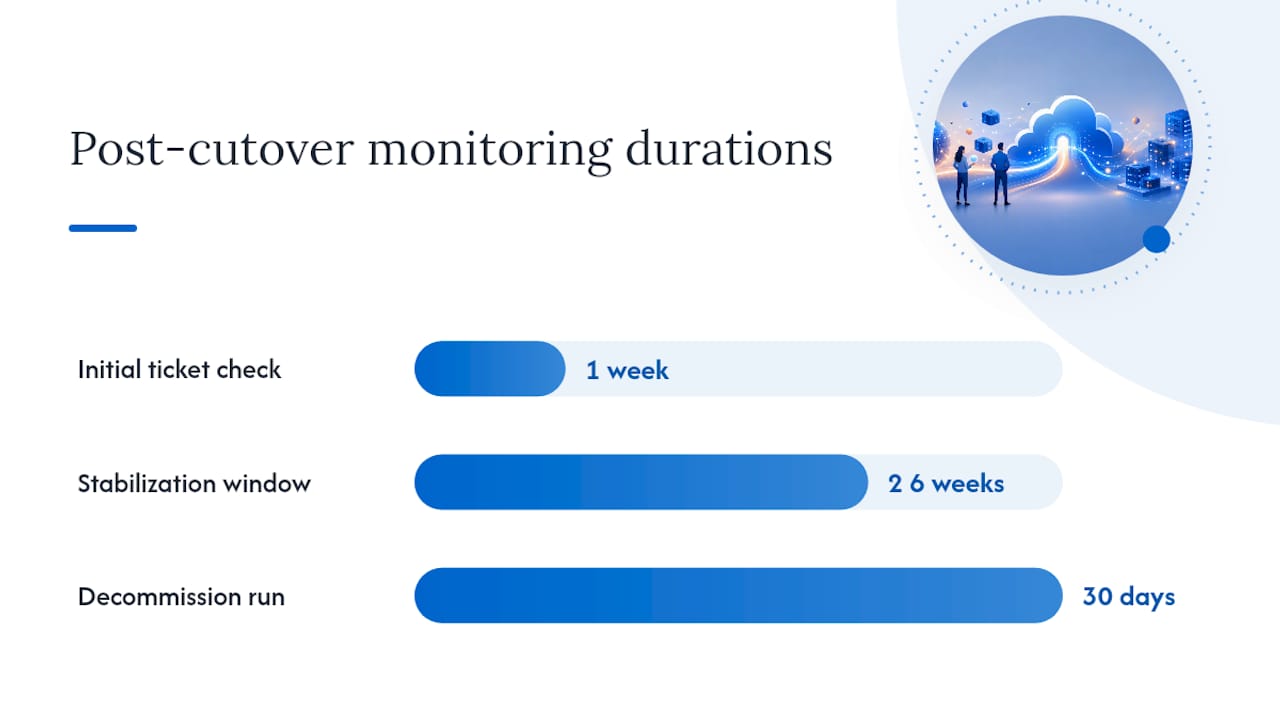
Stabilization is a monitoring window, typically two to four weeks, not a single day. Track help desk ticket volume against your pre-migration baseline; a spike that does not taper within the first week usually points to a missed reconfiguration step rather than normal adjustment friction. Pull a Secure Score baseline in this window too, since a freshly migrated tenant often has looser default settings than the one you just retired.
Decommission legacy Exchange only after a defined parallel run, generally 30 days minimum, once ticket volume has returned to normal and no mailbox has surfaced a missing item. Retiring the old system too early removes your only rollback path if something surfaces late.
The Security Baseline You Need Before Data Moves
Security configuration belongs before migration, not after. A tenant that receives live company data before its access controls are locked down is an easier target, and fixing that after the fact costs far more than setting it up correctly the first time.
- Enforce MFA on every administrator account before any mailbox data enters the tenant.
- Reduce Global Administrator assignments to the minimum number of people who genuinely need that role.
- Roll out Conditional Access in three stages: audit mode first, then a pilot group, then full enforcement.
- Block legacy authentication protocols once you have confirmed no application still depends on them.
- Enable the unified audit log and set baseline retention labels through Microsoft Purview before user data arrives.
- Configure DLP policies for regulated data types relevant to your industry, healthcare, financial, or legal records, before those mailboxes migrate.
Regulated organizations need an added layer here. If your mailboxes contain HIPAA-covered health information or data subject to GDPR, confirm retention and eDiscovery settings meet your compliance obligations before the first wave runs, not after an auditor asks. Securetechie's Microsoft 365 security checklist walks through the full tenant hardening sequence in more depth if you need a standalone reference for this phase.
Pro Tip: Turn on Conditional Access audit mode during discovery, weeks before cutover. That gives you real sign-in data to base your enforcement policy on, instead of guessing which legacy app will break first.
Building a Budget Finance Will Actually Approve
CFOs approve line-item budgets far more readily than a single lump figure, because a lump sum invites the question "why so much?" with no easy answer. A migration budget generally breaks into nine components: destination license overlap, migration tooling, planning labor, delivery labor, cutover-day premiums, communications and training materials, post-go-live support, and contingency.
- License overlap: budget for both source and destination licenses running concurrently for the length of your migration window.
- Tooling costs: often the smallest line item relative to labor, despite getting the most attention in vendor pitches.
- Planning and delivery labor: usually the largest cost driver, scaling with mailbox count and complexity.
- Cutover premiums: after-hours or weekend rates for the team executing the actual DNS change.
- Contingency: a buffer for the inevitable public folder, SMTP relay, or PST archive nobody flagged during discovery.
Detailed cost breakdowns show per-mailbox totals varying widely across projects of 25, 100, 500, and 2,000 mailboxes, largely because labor and contingency scale differently than tooling does. Hybrid migrations carry higher fixed setup costs than a simple cutover, but that fixed cost often pays for itself once you are running more than a couple hundred mailboxes, since the per-mailbox labor drops once the coexistence infrastructure is built. Present these line items individually to finance rather than as one number, and be explicit that tooling fees typically cover licensing only, not the labor and overlap costs that make up the bulk of total spend.
A Real Migration: What Happened When the Checklist Met a Live Environment
Securetechie's Microsoft 365 migration case study documents a client engagement where the phase model above ran against a real mixed environment of shared mailboxes, legacy Exchange dependencies, and regulated data. The pilot group intentionally included a high-volume executive mailbox alongside standard users, which surfaced a calendar-sharing issue before it reached the full staff.
Post-go-live support ran at elevated staffing for the first two weeks rather than dropping back to standard coverage immediately, which caught reconfiguration issues before they became a backlog of unresolved tickets. Communications to end users went out on a set cadence, before, during, and after cutover, rather than a single announcement email, which measurably reduced help desk call volume on migration day itself.
What Actually Breaks Most Migrations
Do these two things first: finish the mailbox and application inventory completely, and verify DNS credential access in writing before you schedule anything. Everything else in the checklist assumes both are already true.
The traps that sink timelines are rarely technical. Teams underestimate help desk staffing during the stabilization window, forget public folders exist until a department loses access to shared documents, and assume DNS access without confirming who actually holds registrar credentials. Every one of those is preventable with a five-minute conversation held two weeks earlier than most teams have it.
— Alex
How Securetechie Handles Your Microsoft 365 Migration
Microsoft 365 migrations should be run as a managed engagement, including scoping and discovery, tenant security hardening, pilot and wave execution, and post-go-live support all delivered by the same local team, rather than a migration vendor who disappears the moment DNS propagates.
This approach fits small to mid-size organizations in Southern California that want the checklist above executed by people who answer the phone during stabilization week, not just cutover day. Whether you need a full managed migration or ongoing support once you land in the new tenant, Securetechie's managed help desk provides 24/7 coverage during the weeks that determine whether a migration feels finished or half done. Organizations with regulated data can also pair the migration with a compliance and security audit to confirm HIPAA, SOC 2, or CMMC controls carried over correctly.
Reach out to scope your migration and get a line-item estimate built around your mailbox count and complexity, not a generic quote.
Sources
- Plan a Microsoft 365 tenant-to-tenant migration
- Manage migration batches in Microsoft 365 or Office 365
- Office 365 Migration Cost: The Real Total in 2026 | Mailbox Taxi
FAQ
What Is the Best Migration Tool for Office 365?
Microsoft's native migration dashboard and PowerShell cmdlets handle most mailbox migrations without extra software; third-party tools become worthwhile mainly for complex SharePoint or Teams content with deep permission structures, or for organizations that prefer a managed service to run the entire project.
What Are the Key Steps in a Data Migration Checklist?
The core sequence is discovery and inventory, tenant security setup, pilot testing, wave migrations with monitoring, a controlled DNS cutover, and a stabilization period before decommissioning legacy systems.
What Are Good Migration Tools for Microsoft 365?
Microsoft's built-in migration dashboard and Exchange Online PowerShell cmdlets cover cutover, staged, and IMAP migrations natively; FastTrack resources support more complex tenant-to-tenant scenarios, and a managed provider like Securetechie can run the full project end to end for organizations that prefer not to manage it internally.
Does Microsoft Have Its Own Migration Tool?
Yes. Microsoft 365 includes a built-in migration dashboard in the Exchange admin center along with PowerShell cmdlets for creating, monitoring, and managing migration batches directly within the tenant.