
For most organizations, a staged G Suite to 365 migration using a third-party tool like BitTitan MigrationWiz is the right approach. Mail, Drive, and identity each carry distinct complexity, and a single-pass "big bang" cutover leaves no room to catch errors before users are affected.
Immediate next steps:
- Inventory your data. Run a Google Workspace export to assess mailbox sizes, Drive volume, Shared Drive count, and any active retention or archival policies.
- Verify your domain and provision licenses. Confirm domain ownership in the Microsoft 365 admin center and assign Exchange Online and OneDrive licenses before any data moves.
- Define your pilot group. Select 5–10 representative users across departments to test mail, calendar, and Drive migration before the bulk run.
Pro Tip: Disable any Messaging Records Management (MRM) or automated archival policies in Google Workspace before migration starts. Microsoft's native tool does not recognize these policies, and active MRM can cause migrated items to appear missing during verification, creating false-positive errors that slow the project down.
Table of Contents
- Which migration approach is right for your organization?
- How to plan the full migration sequence
- What prerequisites must you complete before migration starts?
- How do you handle identity, accounts, and authentication?
- How do you migrate Gmail to Exchange Online?
- How do you migrate Drive, Shared Drives, and Google Docs?
- What migrates for calendars and contacts, and what needs validation?
- How do you run a pilot, execute cutover, and roll back if needed?
- What post-migration tasks must you complete after cutover?
- What are the known migration limitations and gotchas?
- How long does migration take, and what drives the cost?
- How do you protect security and compliance during migration?
- Which migration tool should you choose?
- How do you communicate the change and support users through it?
- How Securetechie executes a G Suite to Microsoft 365 migration
- Key Takeaways
- What IT admins and decision-makers often underestimate about this migration
- Securetechie handles your migration from discovery to hypercare
- Authoritative resources for your migration runbook
Which migration approach is right for your organization?
Three paths exist for a Google Workspace to Microsoft 365 migration: Microsoft's native tooling, a third-party migration platform, or a fully managed service. The right choice depends on your org size, Drive footprint, and how much risk you can absorb.
Native Microsoft tools (Exchange admin center + Migration Manager)
Microsoft's native migration path covers Gmail, Calendar, and Contacts through the Exchange admin center. Drive migration requires Migration Manager, a separate tool within the Microsoft 365 admin center. Native tools are free with your Microsoft 365 subscription, but they offer limited reporting, no resume-on-failure for Drive jobs, and no delta sync capability for mail. For organizations with fewer than 25 users, minimal Shared Drive content, and no compliance requirements, the native path is workable.

Third-party migration platforms
Tools like BitTitan MigrationWiz and ShareGate add delta sync, concurrent migration batches, detailed per-item logs, and resume-on-failure. These capabilities matter when you have large Drive estates, many Shared Drives, or a tight cutover window. Third-party tools earn their place when data volume, Shared Drive complexity, or timeline pressure exceeds what native tooling handles gracefully.
Managed migration service
A managed service provider handles scoping, tooling, execution, cutover coordination, and hypercare. This is the right choice for regulated organizations (HIPAA, CMMC, SOC 2), tenants with complex identity configurations, or IT teams that cannot dedicate internal bandwidth to a multi-week project.
| Approach | Best for | Supported data | Cost | Downtime / user impact |
|---|---|---|---|---|
| Native Microsoft tools | 1–25 users, mail-only, no Drive complexity | Mail, Calendar, Contacts (Drive via Migration Manager) | Included with M365 license | Moderate; limited delta sync |
| BitTitan MigrationWiz | 25–250 users, Drive-heavy, tight timelines | Mail, Calendar, Contacts, Drive, Shared Drives | Per-mailbox licensing | Low; delta sync supported |
| ShareGate | Drive/SharePoint-focused, permission-heavy | Drive, Shared Drives, permissions, metadata | Per-migration or subscription | Low; strong permission mapping |
| Managed service | Regulated orgs, complex identity, limited IT bandwidth | All data types, identity, compliance controls | Project-based professional services | Lowest; full coordination |
Key trade-offs to weigh:
- Native tools have no per-item error reporting for Drive jobs, making it hard to identify what failed.
- Third-party tools require per-mailbox or per-user licensing, which adds cost but reduces project risk significantly.
- A managed service adds professional services hours but removes execution burden from internal IT.
Pro Tip: If your organization has more than 10 Shared Drives or any active DLP policies, skip the native-only path. The reporting gaps alone will cost more time in troubleshooting than the tool licensing would have.
How to plan the full migration sequence
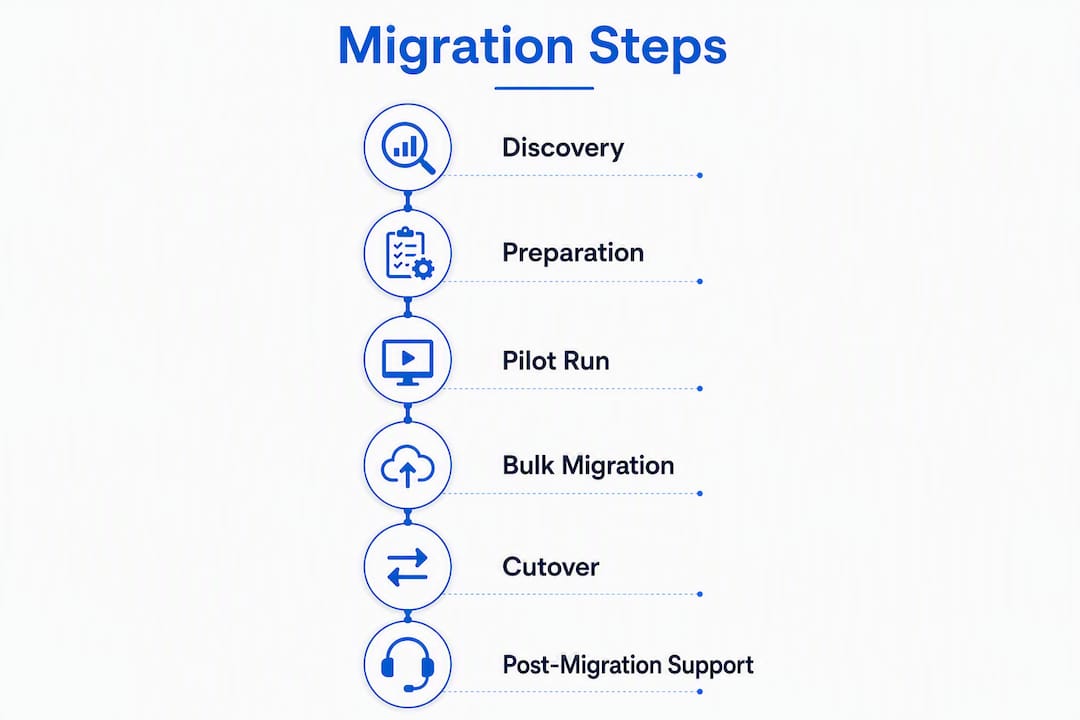
A well-sequenced migration follows six phases. Skipping or compressing any phase increases cutover risk.
- Discovery (Days 1–3). Audit mailbox sizes, Drive volume, Shared Drive structure, identity configuration, and any active retention or compliance policies.
- Environment preparation (Days 4–7). Verify domain, provision Microsoft 365 licenses, configure Exchange Online, set up OneDrive/SharePoint, and pre-stage DNS records with a low TTL.
- Pilot migration (Days 8–14). Migrate 5–10 pilot users. Validate mail flow, calendar recurrence, Drive file fidelity, and Outlook client configuration before proceeding.
- Staged bulk migration (Days 15–28). Migrate users in batches. Run Drive migration in parallel with mail staging to reduce total elapsed time, since Drive is typically the longest phase due to API throttling.
- Cutover (Weekend, 4–8 hours). Run final delta sync, switch MX records, update SPF/DKIM/DMARC, and confirm mail flow in Exchange Online.
- Hypercare (Days 29–42). Monitor mail flow, resolve Outlook profile issues, audit Drive/SharePoint permissions, and support users through the transition.
For SMBs, a typical engagement runs several weeks from discovery to hypercare close. Larger organizations with hundreds of users or complex identity configurations should plan for a longer timeline.
Pro Tip: Start Drive migration during the environment preparation phase, not after mail migration completes. Running both workstreams in parallel cuts total project time by one to two weeks for most mid-size organizations.
What prerequisites must you complete before migration starts?
Skipping pre-migration checks is the single most common cause of failed or delayed migrations. Complete every item on this checklist before any data transfer begins.
Domain and DNS:
- Verify your domain in the Microsoft 365 admin center.
- Lower your MX record TTL to 300 seconds at least 48 hours before cutover so DNS propagation is fast.
- Pre-stage SPF, DKIM, and DMARC records in your DNS provider but do not activate them until cutover.
Admin roles and API access:
- Confirm Google Workspace Super Admin access for the migration account.
- Create a Google service account with domain-wide delegation, or install the Microsoft 365 Migration app from the Google Workspace Marketplace.
- In Microsoft 365, assign Global Administrator rights to the migration account and confirm the required Microsoft Graph API scopes are consented.
Licensing and storage:
- Provision Exchange Online mailboxes for all destination users before migration batches start.
- Verify OneDrive and SharePoint storage quotas against your Drive inventory totals.
- Microsoft requires destination mailboxes to exist before the migration tool can target them.
Policy and compliance:
- Disable MRM and automated archival policies in Google Workspace. Active MRM causes verification to flag archived items as missing, generating false errors.
- Export and document any active Google Vault holds or retention rules so equivalent policies can be recreated in Microsoft Purview.
- Confirm that any HIPAA Business Associate Agreements or data residency requirements are in place for the Microsoft 365 tenant before data transfer begins.
Pro Tip: Set your Google Workspace OAuth API quotas to the maximum allowed before migration. Default quotas throttle migration tools aggressively, and hitting a quota ceiling mid-batch forces a restart from the last checkpoint, adding hours to the project.
How do you handle identity, accounts, and authentication?
Identity mapping is where most migrations introduce silent errors. A mailbox that does not match its Entra ID object will fail to receive mail after cutover, and the failure may not surface until users report it.
Three identity architecture options:
- Cloud-only Entra ID. Accounts exist only in Microsoft 365. Suitable for organizations with no on-premises Active Directory. User accounts are created manually or via CSV import.
- Entra Connect (formerly Azure AD Connect). Synchronizes on-premises Active Directory to Entra ID using password hash sync or pass-through authentication. Required when users need single sign-on against an on-premises directory. Microsoft's Entra Connect setup documentation covers both installation modes.
- Federated SSO. Uses ADFS or a third-party identity provider. Adds complexity and is typically reserved for organizations with existing federation infrastructure.
User mapping strategies:
- Map Google primary SMTP addresses to Microsoft 365 UPNs. Mismatched UPNs are the leading cause of mailbox-not-found errors during migration.
- Add Google aliases as secondary SMTP addresses (proxy addresses) in Exchange Online so mail sent to old addresses routes correctly during the transition period.
- Translate Google Groups to Microsoft 365 Groups or distribution lists based on usage pattern: collaboration groups map to M365 Groups, announcement lists map to distribution lists.
- Shared mailboxes in Google Workspace map to shared mailboxes in Exchange Online. Confirm that delegate access permissions are recreated before cutover.
Sample attribute mapping:
| Google Workspace attribute | Entra ID / Exchange Online attribute |
|---|---|
| Primary email address | UPN and primary SMTP address |
| Display name | Display name |
| Google alias | Proxy address (secondary SMTP) |
| Google Group (collaboration) | Microsoft 365 Group |
| Google Group (announcement) | Distribution list |
| Delegated mailbox access | Shared mailbox with Full Access permission |
Common errors to avoid:
- Duplicate objects occur when a cloud-only account and an Entra Connect-synced account share the same UPN. Run IdFix or the Microsoft 365 admin center's directory sync error report before enabling Entra Connect.
- Mismatched UPNs between Google and Microsoft cause migration batch failures. Audit the CSV mapping file against both directories before submitting any batch.
How do you migrate Gmail to Exchange Online?
Mail migration is the most straightforward workstream, but it still requires careful configuration to avoid message loss and post-cutover routing errors.
Choosing your mail migration method
Three methods are available. The right one depends on your org size and fidelity requirements.
- Microsoft native Google Workspace migration (Exchange admin center): covers mail, calendar, and contacts; supports batching; free with your license. Best for organizations under 50 users with no Drive complexity.
- Third-party tool (BitTitan MigrationWiz or equivalent): adds delta sync, per-item error logs, and resume-on-failure. Recommended for most SMB migrations with more than 25 users.
- IMAP migration: the lowest-cost option, but IMAP loses calendar data, contacts, folder metadata, and read/unread state. Acceptable only for single-user moves where calendar fidelity is not required.
Mail migration checklist
- Create a service account in Google Workspace and generate a JSON key file, or install the Microsoft 365 Migration app from the Google Workspace Marketplace.
- Enable the Gmail API in the Google Cloud Console for the migration service account.
- Build a CSV user mapping file with source email addresses and destination mailbox UPNs. Validate it against both directories before uploading.
- Create migration batches of 50–100 users. Smaller batches reduce the blast radius of any throttling event and make error triage faster.
- Submit the first batch and monitor the Exchange admin center migration dashboard for per-mailbox item counts and error flags.
- Run a delta sync pass 24–48 hours before cutover to minimize the mail gap at MX switch.
- After MX cutover, run one final delta pass to capture any mail delivered to Google during DNS propagation.
Known caveats:
- Gmail labels do not map to Outlook folders one-to-one. Labels become folders, but messages with multiple labels are duplicated into each corresponding folder.
- Inbox rules (filters) do not migrate. Document active rules before migration and recreate them in Outlook post-cutover.
- Throttling and expired OAuth tokens are common causes of mid-migration stalls. Use resume-capable tools and keep batch sizes manageable to avoid reprocessing large mailboxes from scratch.
Pro Tip: After cutover, send a test message from an external address to each migrated mailbox and confirm delivery in Outlook. Also test reply-to routing to catch any proxy address gaps before users discover them.
How do you migrate Drive, Shared Drives, and Google Docs?
Drive migration is almost always the longest phase of a Google Workspace to Microsoft 365 project. API throttling, file format conversion, and permission translation all add time, and the work should start early.

Mapping Google Drive to Microsoft 365
| Google source | Microsoft 365 destination | Notes |
|---|---|---|
| My Drive (personal) | OneDrive for Business | Per-user; preserves folder structure |
| Shared Drive | SharePoint document library | One library per Shared Drive recommended |
| Shared Drive (Teams-connected) | Teams-backed SharePoint site | Use when the team already uses Teams channels |
| Shared files (not in a Shared Drive) | OneDrive or SharePoint (by ownership) | Requires ownership decision before migration |
File format conversion notes
Google Docs, Sheets, and Slides convert to Word, Excel, and PowerPoint respectively. Most standard documents convert cleanly, but several edge cases require attention:
- Complex Sheets formulas using Google-specific functions (GOOGLEFINANCE, IMPORTRANGE, QUERY) do not have direct Excel equivalents and will break on conversion.
- Slides animations and transitions may not render identically in PowerPoint.
- Version history does not migrate. If version history is required for compliance, export it from Google Vault before migration.
Permission translation and verification
Drive and Shared Drive permissions translation is the most error-prone area of the migration. Migration tools carry most permissions, but human review is required before cutover to fix ownership gaps and unique-permission exceptions.
- Audit Shared Drive membership lists and compare them to the planned SharePoint site permission groups before migration runs.
- External sharing links from Google Drive do not transfer. Document all active external sharing links and notify external collaborators of new SharePoint links post-migration.
- Verify that OneDrive storage quotas are sufficient for each user's My Drive volume before the migration job starts.
Pro Tip: Run a pre-migration cleanup pass in Google Drive. Files that have not been accessed in two or more years and have no active sharing links are good candidates for archiving rather than migrating. Reducing Drive volume before migration cuts both tool licensing costs and migration time.
What migrates for calendars and contacts, and what needs validation?
Calendar and contact migration is less complex than Drive, but several edge cases cause post-cutover confusion if not validated during the pilot.
What migrates:
- Calendar events, including attendee lists and meeting body content.
- Recurring event series (with caveats — see below).
- Personal contacts from Google Contacts.
- Room and resource calendars (via the migration tool, with admin configuration).
Known edge cases:
- Recurring event series with exceptions (individual occurrences modified from the series) sometimes lose their exception data, reverting to the base recurrence rule.
- Calendar recurrence rules and shared/room calendars can lose metadata and should be explicitly verified in pilot runs.
- Event colors do not migrate. Users will need to reapply color categories in Outlook.
- Delegated calendar access must be manually recreated in Exchange Online after migration.
- Contact aliases and Google Directory entries do not migrate automatically. Shared contacts from the Google Directory need to be exported and imported into Exchange Online as shared address book entries.
Post-migration validation checklist:
- Open a migrated recurring series in Outlook and confirm the recurrence rule matches the original.
- Check at least two recurring events that had individual exceptions and verify the exceptions are intact.
- Send a meeting invite from a migrated mailbox to an external address and confirm the invite arrives correctly.
- Verify that delegated calendar access works for any user who had delegate permissions in Google Workspace.
- Confirm room and resource calendars appear in the Exchange Online room list and accept bookings correctly.
How do you run a pilot, execute cutover, and roll back if needed?
A well-designed pilot prevents the bulk migration from inheriting errors at scale. Cutover is a short, high-stakes window, and having a documented rollback plan before you start is not optional.
Designing the pilot group
Select 5–10 users who represent the organization's data diversity: a heavy email user, a user with complex recurring meetings, a Shared Drive owner, and a user with delegated mailbox access. Run the pilot migration and give users 48–72 hours to work in Microsoft 365 before declaring success.
Pilot success criteria:
- All mail delivered to Google during the pilot period is visible in Outlook.
- Recurring calendar series are intact with no missing exceptions.
- Drive files are accessible in OneDrive/SharePoint with correct permissions.
- Outlook client connects without credential prompts.
Staged batch plan and cutover sequence
- Complete pilot and address all identified issues before proceeding to bulk migration.
- Migrate users in batches of 50–100, starting with lower-risk departments.
- Run a delta sync pass on each completed batch 24 hours before the cutover window.
- On cutover night, run the final delta sync for all mailboxes.
- Switch MX records to Exchange Online. With a pre-staged TTL of 300 seconds, propagation completes within 5–10 minutes for most DNS providers.
- Activate SPF, DKIM, and DMARC records for the Microsoft 365 tenant.
- Confirm inbound and outbound mail flow from Exchange Online before closing the cutover window.
Rollback checklist and triggers
Initiate rollback if any of the following occur during cutover:
- MX records fail to propagate after 30 minutes.
- More than 5% of mailboxes report no mail delivery after MX switch.
- Exchange Online reports service degradation affecting the tenant.
Rollback steps:
- Revert MX records to Google Workspace (TTL propagation is fast if pre-staged).
- Notify users to continue working in Google Workspace.
- Document the failure point and schedule a post-mortem before rescheduling cutover.
Pro Tip: Keep the Google Workspace MX records in your DNS provider's interface, ready to re-enable with a single save. Do not delete them until hypercare closes and you are confident the migration is stable.
What post-migration tasks must you complete after cutover?
Cutover is not the finish line. Several operational tasks must be completed within the first 48–72 hours to finalize the migration and prevent user-facing issues from compounding.
Client configuration and mailbox setup:
- Deploy Outlook profiles via Microsoft 365 admin center or Intune. Autodiscover handles most configurations automatically, but verify that mobile devices connect to Exchange Online rather than the old Google IMAP endpoint.
- Recreate inbox rules for users who had active Gmail filters. Provide a self-service guide for users to rebuild their own rules in Outlook.
- Verify shared mailbox access for all delegate users and confirm Send As and Send on Behalf permissions are in place.
Drive and SharePoint permissions audit:
- Run a SharePoint permissions report and compare it against the pre-migration Drive permissions inventory.
- Validate external sharing settings in SharePoint admin center. Default SharePoint sharing policies may be more permissive than Google Drive settings, which creates a compliance risk if not reviewed.
- Notify external collaborators of new SharePoint sharing links. Old Google Drive links are now broken.
Decommissioning Google Workspace:
- Maintain Google Workspace licenses for a minimum 30-day retention window after cutover. Users may need to retrieve items not captured in the migration.
- Export any remaining Google Vault data and store it in a compliant archive before canceling licenses.
- Cancel Google Workspace licenses only after confirming all data has been verified and the retention window has closed.
Pro Tip: Check your Microsoft 365 security configuration immediately after cutover. Default tenant settings for external sharing, MFA enforcement, and conditional access policies may not match your organization's security posture and should be reviewed before users are fully active.
What are the known migration limitations and gotchas?
Setting realistic expectations before the project starts prevents scope creep and stakeholder frustration mid-migration.
File and format limitations:
- Google-specific Sheets functions (GOOGLEFINANCE, IMPORTRANGE, QUERY) break on conversion to Excel. These require manual remediation.
- Slides animations may not render correctly in PowerPoint. Complex presentations should be reviewed and adjusted post-migration.
- Google Forms do not migrate to Microsoft Forms. Forms must be recreated manually.
Messaging and policy limitations:
- Gmail labels become Outlook folders, but messages tagged with multiple labels are duplicated. Users with heavy label use will need to clean up duplicate messages post-migration.
- Inbox rules (filters) do not migrate via any tool. Manual recreation is required.
- Active MRM and archival policies in Google Workspace cause verification to flag archived items as missing. Disable these before migration starts.
Collaboration and compliance limitations:
- Google Chat history and Spaces do not migrate to Microsoft Teams. Chat history can be exported via Google Takeout for archiving, but it will not be searchable in Teams.
- Google Vault holds and retention policies do not transfer. Equivalent policies must be configured in Microsoft Purview before cutover.
- Shared Drive ownership structures do not map cleanly to SharePoint site ownership. Ownership decisions must be made manually before migration.
API and throttling limitations:
- Google's API throttling limits how fast migration tools can read Drive data. Large Drive estates may require multiple days of background migration before cutover.
- OAuth tokens expire during long migration jobs. Tools without automatic token refresh will stall and require manual intervention.
How long does migration take, and what drives the cost?
Timeline and cost vary significantly based on org size, data volume, and the complexity of your Drive and identity configuration.
| Org size | Discovery and prep | Pilot | Bulk migration | Cutover | Hypercare | Total |
|---|---|---|---|---|---|---|
| 1–25 users | 1–2 days | 2–3 days | 3–5 days | 4–8 hours | 1 week | 2–3 weeks |
| — | 3–5 days | 3–5 days | 2–3 weeks | 4–8 hours | 2 weeks | 4–6 weeks |
| 250+ users | 1–2 weeks | 1 week | 4–8 weeks | 8 hours | 3–4 weeks | 8 weeks |
Primary cost drivers:
- Data volume. Large mailboxes and Drive estates extend migration time and increase tool licensing costs.
- Shared Drive complexity. Organizations with many Shared Drives and complex permission structures require more pre-migration planning and post-migration validation.
- Third-party tool licensing. BitTitan MigrationWiz and ShareGate are priced per mailbox or per user. For a 100-user organization, tool licensing is a meaningful line item.
- Professional services hours. Managed or co-managed engagements add project management, technical execution, and hypercare support hours.
- Licensing changes. Moving from Google Workspace Business to Microsoft 365 Business Premium involves a licensing cost comparison that should be completed during discovery.
For cloud migration cost frameworks, the largest variable is typically Drive volume and Shared Drive count, not mailbox count.
How do you protect security and compliance during migration?
Data moving between two cloud tenants is not inherently secure by default. Several controls must be verified before and during migration to maintain compliance posture.
Pre-cutover security checks:
- Validate that DLP policies are configured in Microsoft Purview before any data lands in the destination tenant.
- Confirm that audit logging is enabled in the Microsoft 365 compliance center. Audit logs are not retroactive; they must be active before migration begins.
- Review conditional access policies in Entra ID. Ensure MFA is enforced for all migrated accounts before cutover.
Regulated data handling:
- For HIPAA-covered organizations, confirm that a Business Associate Agreement is in place with Microsoft before migrating any protected health information.
- For CMMC or SOC 2 environments, document the migration as a change event and collect evidence of pre- and post-migration security controls for audit purposes. Securetechie's compliance audit services can support this documentation process.
- Data residency requirements (where applicable) should be confirmed in the Microsoft 365 admin center under the tenant's data location settings before migration starts.
Backup and rollback:
- Export a full Google Takeout archive before migration begins. This serves as a point-in-time backup if items are missed or corrupted during migration.
- For regulated organizations, consider a third-party backup solution for Microsoft 365 post-migration. Microsoft's native retention policies are not a substitute for a dedicated backup.
Pro Tip: Do not wait until post-migration to configure Microsoft 365 security defaults. Set MFA, conditional access, and DLP policies in the destination tenant during the environment preparation phase, before any user data arrives.
Which migration tool should you choose?
The right tool depends on your org size, Drive footprint, and compliance requirements. Here is a practical breakdown.
Microsoft native migration (Exchange admin center + Migration Manager)
Best for organizations with fewer than 25 users, minimal Shared Drive content, and no compliance requirements. Microsoft's native path handles mail, calendar, and contacts through the Exchange admin center; Drive migration uses Migration Manager separately. No additional licensing cost, but limited error reporting and no delta sync for mail.
BitTitan MigrationWiz
The most widely used third-party tool for SMB migrations. MigrationWiz supports concurrent migrations, delta sync passes, per-item error logs, and resume-on-failure. It handles mail, calendar, contacts, and Drive (including Shared Drives). Recommended for most organizations with 25 or more users, particularly those with large Drive estates or tight cutover windows.
ShareGate
ShareGate is purpose-built for SharePoint and OneDrive migrations. Its permission mapping and reporting capabilities are stronger than MigrationWiz for Drive-heavy migrations. Best for organizations where the primary complexity is Shared Drive structure and SharePoint permission fidelity, rather than mail volume.
Scenario-to-tool guidance:
- Small org, mail only (under 25 users, no Shared Drives): Microsoft native tools via Exchange admin center.
- Mid-size org, mail and Drive (25–250 users, multiple Shared Drives): BitTitan MigrationWiz for mail and Drive; ShareGate if SharePoint permission fidelity is the priority.
- Regulated org needing audit trails (HIPAA, CMMC, SOC 2): Managed service with BitTitan MigrationWiz or ShareGate plus documented change management and compliance evidence collection.
Tool selection checklist:
- Delta sync capability for mail and Drive.
- Resume-on-failure for interrupted jobs.
- Per-item error reporting with exportable logs.
- Permission mapping for Shared Drives to SharePoint.
- Throttling controls and batch size configuration.
- OAuth token auto-refresh to prevent mid-job stalls.
Pro Tip: For Microsoft 365 administrators looking to deepen their platform knowledge alongside a migration project, the Microsoft MD-102 endpoint administrator certification covers device management and deployment concepts that complement a migration engagement.
How do you communicate the change and support users through it?
Migration is as much a change management project as a technical one. Mapping identities and configuring tools correctly matters, but users who are unprepared for the Outlook and Teams experience will generate a helpdesk spike that strains the IT team during the most critical post-cutover period.
Communication timeline:
- Two weeks before pilot: Announce the migration to all staff. Explain what is changing, what is not, and the expected timeline.
- During pilot: Collect feedback from pilot users on Outlook, OneDrive, and Teams experience. Use this to refine training materials.
- One week before cutover: Send a detailed cutover notice with the exact date, what users need to do (nothing, in most cases), and who to contact for help.
- Cutover day: Send a brief confirmation when mail flow is live in Outlook.
- First week post-cutover: Daily check-in email with tips, FAQs, and helpdesk contact information.
Training checklist:
- Outlook basics: composing, replying, folder structure, and inbox rules.
- OneDrive and SharePoint: where personal files live, how to share, and how to access Shared Drive equivalents.
- Teams: channel etiquette, chat vs. email guidance, and meeting scheduling.
- Quick reference card: a one-page PDF covering the five most common tasks users performed in Google Workspace and their Microsoft 365 equivalents.
Support model:
- Designate office champions in each department. These are pilot users who received early training and can answer peer questions without escalating to IT.
- Staff a temporary helpdesk escalation path for the first two weeks post-cutover. Response time targets should be tighter than normal during this window.
- Plan a formal hypercare close meeting at the end of week two to review open tickets, confirm all mailboxes are stable, and document any outstanding items.
How Securetechie executes a G Suite to Microsoft 365 migration
A representative Securetechie migration engagement involved a Southern California professional services firm with 85 users, approximately 2 TB of Drive data across 14 Shared Drives, and HIPAA compliance requirements. The project ran from initial scoping to hypercare close in five weeks.
Scope and technical choices:
- BitTitan MigrationWiz was selected for mail and Drive migration due to the Shared Drive volume and the need for per-item audit logs for HIPAA evidence.
- Entra Connect was deployed in password hash sync mode to synchronize the client's on-premises Active Directory to Entra ID, eliminating the need for users to manage separate credentials.
- Drive migration started during environment preparation (week one) and ran in parallel with mail staging, reducing total elapsed time by approximately ten days.
Three lessons that changed the runbook:
- Disabling MRM policies in Google Workspace before migration was added as a mandatory pre-flight step after the first pilot batch flagged archived items as missing. This check is now the first item on the pre-migration checklist.
- Shared Drive permission audits revealed three drives with external sharing enabled to personal Gmail addresses. These were remediated before migration to prevent those permissions from carrying into SharePoint.
- Two users had complex recurring meeting series with individual exceptions. These were identified during pilot validation and manually verified in Outlook before bulk migration proceeded.
Outcome:
- Mail cutover completed in under six hours on a Saturday night with no reported mail loss.
- All 85 users were active in Outlook and OneDrive by Monday morning.
- Zero compliance findings during the post-migration HIPAA evidence review.
For a detailed breakdown of the technical approach, see the Microsoft 365 migration case study on the Securetechie website.
Pro Tip: The Shared Drive permission audit is the step most organizations skip because it feels like overhead. In practice, it is the single most reliable way to prevent a compliance incident from occurring the week after cutover.
Key Takeaways
A staged G Suite to 365 migration using a third-party tool with a documented pilot, pre-staged DNS, and a parallel Drive workstream is the most reliable path for organizations with more than 25 users or any compliance requirements.
| Point | Details |
|---|---|
| Start with inventory and pilot | Audit mailbox sizes, Drive volume, and Shared Drive count before selecting a tool or timeline. |
| Disable MRM before migration | Active archival policies cause false-missing-item errors; disable them before any batch starts. |
| Run Drive migration in parallel | Starting Drive migration during environment prep cuts total project time by one to two weeks. |
| Match tool to org complexity | Native tools fit under-25-user mail-only moves; BitTitan MigrationWiz or ShareGate for larger or Drive-heavy orgs. |
| Securetechie for managed execution | Securetechie handles discovery through hypercare for SMBs in Southern California, including HIPAA and compliance-regulated migrations. |
What IT admins and decision-makers often underestimate about this migration
The technical steps in a Google Workspace to Microsoft 365 migration are well-documented. What is less discussed is where projects actually stall, and it is rarely the mail migration.
Shared Drive permissions are the hidden complexity in almost every mid-size migration. Organizations accumulate years of ad hoc sharing, external collaborators with edit access, and drives that no longer have a clear owner. Migration tools will carry those permissions faithfully into SharePoint, which means every governance problem in Google Drive becomes a SharePoint governance problem on day one. The only fix is a permissions audit before migration, not after.
The second underestimated factor is MRM and archival policy handling. Many organizations have automated archival policies running in Google Workspace that they set up years ago and forgot about. When those policies are active during migration, verification flags archived items as missing, and IT teams spend hours investigating what turns out to be a policy conflict rather than data loss. Disabling MRM before migration is a five-minute task that prevents a multi-hour investigation.
On the change management side, the organizations that handle post-cutover support best are the ones that trained office champions during the pilot phase, not the ones that sent a company-wide email the day before cutover. Users who have a peer to ask first generate far fewer helpdesk tickets than users who go straight to IT with every Outlook question.
For regulated organizations, the compliance evidence gap is the risk that leadership should understand before the project starts. Migration is a change event that auditors will ask about. If you cannot produce documentation showing that DLP policies, audit logging, and MFA enforcement were in place before data moved, you have a finding. Treating compliance documentation as a post-migration cleanup task is the wrong sequence.
When Securetechie recommends a fully managed engagement over a co-managed one, it is usually because the organization has one or more of these factors: active compliance requirements, a Drive estate with more than ten Shared Drives, or an IT team that cannot dedicate a primary resource to the project for four to six weeks. Co-managed works well when internal IT has the bandwidth and wants to retain control of the execution, with Securetechie providing tooling, runbook guidance, and cutover coordination.
Securetechie handles your migration from discovery to hypercare
For SMBs in Southern California that need a migration done right the first time, Securetechie offers a fully managed path from initial scoping through post-cutover hypercare. The difference from a DIY or tool-only approach is concrete: a dedicated local team that has executed HIPAA-compliant migrations, a documented runbook built from real project experience, and 24/7 monitoring that does not stop when the cutover window closes.
Securetechie's migration engagements cover discovery, environment preparation, pilot execution, staged bulk migration, MX cutover, and a structured hypercare period. For regulated organizations, the process includes compliance evidence collection and a post-migration security review aligned to HIPAA, SOC 2, or CMMC requirements. The managed infrastructure services page outlines the full scope of what is included.
To schedule a migration assessment or discuss your organization's specific requirements, contact Securetechie directly at securetechie.com.
Authoritative resources for your migration runbook
Bookmark these official Microsoft sources before starting your project. They contain the most current prerequisites, API quota limits, and migration parameters.
- Perform a Google Workspace migration to Microsoft 365 or Office 365 | Microsoft Learn — the authoritative reference for mail, calendar, and contacts migration prerequisites, limitations, and step-by-step configuration.
These four documents cover the majority of technical decisions in a standard migration. Consult the Migration Manager overview for Drive-specific API quota guidance and the Exchange migration reference for message size limits and batch configuration parameters. Keep them open during runbook creation.