
A Microsoft 365 retention policy is a rule that decides how long email, files and Teams messages are kept, when they are deleted, or both. It applies to a whole location, such as every mailbox or every SharePoint site, so you set it once and it covers everything in scope. Getting it right means matching the rule to your legal obligations before you switch it on, because a deletion rule applied too broadly cannot be undone. That is why we treat retention as a compliance decision first and a configuration task second.
TL;DR
- A retention policy keeps content, deletes it, or keeps it for a set period and then deletes it. It works on whole locations: mailboxes, SharePoint sites, OneDrive accounts, Microsoft 365 Groups and Teams messages.
- Use a policy for the company-wide baseline and retention labels for exceptions such as contracts or patient records that need a longer period.
- When rules conflict, the rule that keeps content wins over the rule that deletes it. Test scope and timing before you publish.
- HIPAA, SEC and FINRA obligations come with specific periods. Write them down first, then build the policy.
- Retention is not backup. It preserves content for compliance, but it does not restore a damaged tenant.
Table of Contents
- What a retention policy actually does
- Retention policy or retention label?
- Before you build: decide the retention periods
- How to create a retention policy in Microsoft Purview
- What happens to content under a policy
- When policies conflict
- Retention, holds and backup are three different tools
- Our perspective
- Get the schedule and the policy right the first time
- A short checklist before you publish
- FAQ
- Sources
What a retention policy actually does
Microsoft describes retention policies as a way to manage organizational data by deciding to retain content, delete it, or retain and then delete it. The settings are assigned at the container level: all items in a SharePoint site, all email in a mailbox, all channel messages in Teams.
The locations a policy can cover include Exchange mailboxes, SharePoint sites, OneDrive accounts, Microsoft 365 Group mailboxes and sites, Skype for Business, Exchange public folders, Teams chats and channel messages, and Viva Engage messages. Not every location can be combined in a single policy, so most organizations end up with several, for example one for email and one for SharePoint and OneDrive.
Microsoft frames the purpose around three business goals: complying with regulations that require minimum retention, reducing litigation and breach risk by permanently deleting content you no longer need, and keeping users working with current content. For a small firm the second goal is easy to overlook. Old email and files that you have no duty to keep are still discoverable in a lawsuit and still exposed in a breach.
What it covers in each workload
The details differ by service, and they matter when you plan:
- Exchange. Messages (received, drafts, sent) with attachments, tasks with an end date and notes can be retained or deleted. Calendar items with an end date and public folders work with policies. Contacts and items with no end date are not supported, and a mailbox must hold at least 10 MB before retention settings apply.
- SharePoint and OneDrive. All files can be retained, and a policy can delete all files in document libraries. List items are supported only by labels, not policies.
- Teams. Policies cover chat and channel messages. The retention period always starts when the message is created, labels are not supported for Teams, and users need a suitable license such as Office 365 E3 or A3. Deleted messages can remain visible in the app for up to seven days after the period ends.
Retention policy or retention label?
This is the question most owners get stuck on. Per Microsoft's overview, a policy assigns the same settings at the site or mailbox level and does not travel with content if it moves. A label assigns settings at the item level (a folder, a document, an email) and stays with the content inside your tenant.
Labels can do things policies cannot:
- Be applied manually by users, or automatically based on sensitive information types, keywords or trainable classifiers.
- Start the retention period when the label is applied or when an event happens, such as a contract ending.
- Require a disposition review before anything is deleted.
- Mark items as records, with proof of disposition kept for up to seven years.
Policies, in turn, cover Teams, Copilot and AI apps, Viva Engage and public folders, which labels do not support.
A common pattern is a policy for the baseline and labels for the exceptions. A firm might keep all SharePoint content for three years by policy and label contracts for seven. If your labels will also classify sensitivity, our Microsoft 365 sensitivity labels guide shows how the two label types fit together, and our overview of records management in Microsoft 365 covers the record-marking side.
| Question | Retention policy | Retention label |
|---|---|---|
| Applies to | Whole site, mailbox or Teams location | Individual folder, document or email |
| Follows content if it moves | No | Yes, within the tenant |
| Users can apply it | No | Yes |
| Covers Teams messages | Yes | No |
| Event-based start, disposition review | No | Yes |
Before you build: decide the retention periods
The technical steps take minutes. The decision about what to keep takes longer and is the part that exposes you if it is wrong. Start with a short schedule that lists each record type, the rule that governs it and the period.
Some US reference points:
- HIPAA. The Security Rule requires documentation to be kept for six years under 45 CFR 164.316(b)(2)(i). Microsoft's HIPAA whitepaper states that this can be met in Office 365 by enabling archive mailboxes, creating retention tags and a retention policy, and assigning it to user and group mailboxes. Note that HIPAA's period applies to required documentation, which is different from how long medical records themselves must be kept under your state's law.
- Broker-dealers and advisers. SEC and FINRA rules set communication and books-and-records periods, and SEC Rule 17a-4(f) has specific requirements for how electronic records are stored. Your compliance officer or counsel should confirm which rules apply to your registration before any deletion rule is turned on.
- Government-style schedules. The SEC's own Privacy Impact Assessment for Microsoft 365 notes that M365 spans many records schedules with different requirements, and that the users of M365 are responsible for maintaining and disposing of records under the schedules that apply to their program area. The same logic holds for any organization: the tool does not know your schedule until you tell it.
- Law firms and mortgage companies. Client files, engagement letters and loan files usually carry matter-based or state-based periods. These are a good fit for labels that start the clock on an event, such as a matter closing.
A useful rule: if you are unsure whether a period is a minimum, write the policy as retain-only first. You can add a deletion step once counsel confirms the period.
How to create a retention policy in Microsoft Purview
Microsoft's documented path is below, with the places it tends to go wrong.
- Open the policy page. Sign in to the Microsoft Purview portal, then go to Solutions, Data Lifecycle Management, Policies, Retention policies. Select New retention policy and give it a name that states the location and purpose, for example "Email 7 years retain-then-delete". Vague names cause trouble a year later.
- Keep the default admin scope. The default is Full directory. Restricted administrators assigned to administrative units cannot configure policies that include SharePoint sites or Exchange public folders.
- Choose Adaptive or Static. A static policy targets named locations. An adaptive policy targets a scope defined by attributes, such as department, so it follows people as they change roles. Adaptive suits growing firms; static is simpler for a single baseline.
- Pick locations. Select Exchange, SharePoint, OneDrive, Microsoft 365 Groups or Skype for Business, with includes and excludes. This is where mistakes happen. With static scopes, the default is that all instances of a selected location are included, including future mailboxes. Microsoft also warns that if you include one SharePoint site in a delete policy and later remove that site, all SharePoint sites become subject to the deletion policy by default. Review scope every time you edit.
- Choose the action. On the page that asks whether to retain content, delete it, or both, choose retain-only, retain-then-delete or delete-only, and set the period.
- Understand when the clock starts. Retention is calculated from when content was created, or last modified for files in SharePoint, OneDrive and Microsoft 365 Groups, not from when the policy was assigned. A three-year delete policy applied today can therefore affect files that are already older than three years. Consider the age of existing content and tell your users before you apply it.
- Review and save. Then allow time. The Exchange timer job that evaluates the Recoverable Items folder can take up to seven days to run, so changes are not instant.
What happens to content under a policy
Retention settings work with content in place. Microsoft explains that if a user edits or deletes retained content, a copy is kept automatically: in the Preservation Hold library for SharePoint and OneDrive, in the Recoverable Items folder for Exchange, and in a hidden SubstrateHolds folder for Teams, Viva Engage and Copilot.
Three practical effects follow:
- Users do not see the copy and cannot edit, delete or move it. The Preservation Hold library counts against the site's storage quota, so retained content can grow storage use.
- SharePoint sites must be indexed for settings to apply, and sites locked as NoAccess or ReadOnly cannot have items deleted.
- For Exchange, items that no longer match a retention rule are hard-deleted by the timer job, and expired items are permanently deleted within 14 days of the end of the retention period by default, configurable up to 30 days.
A question that comes up often: can a policy delete files from employees' laptops? The policy acts on content stored in Microsoft 365 services. A file that lives only on a local drive is outside it, while a synced OneDrive or SharePoint library is governed through the cloud copy.
When policies conflict
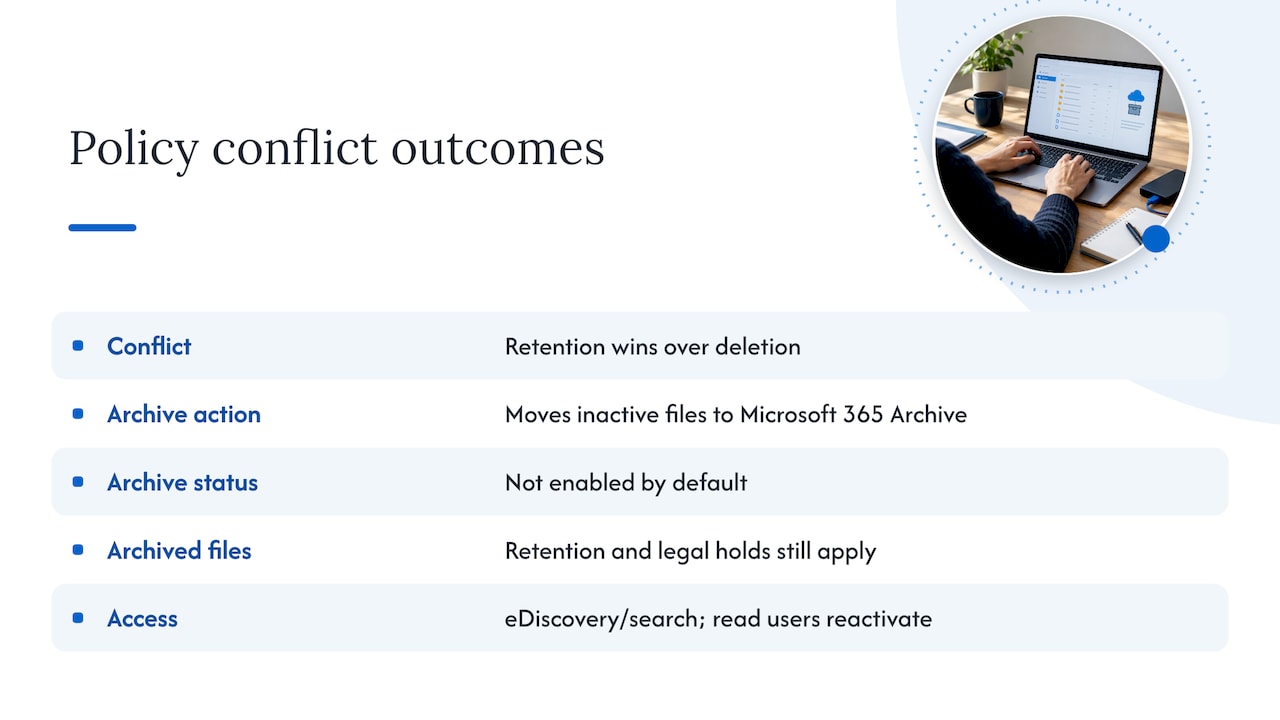
Most tenants end up with more than one policy and some labels. The simple principle is that retention wins over deletion: if one rule says delete after three years and another says keep for five, the item is kept. Plan around that. Check overlapping scopes, and do not assume a short deletion rule is active when a longer retain rule also covers the location.
Newer options add choices. Microsoft's retention settings now include an archive action for SharePoint that can move inactive files to Microsoft 365 Archive while they remain subject to retention and legal holds. It is not enabled by default, archived files stay available for eDiscovery and content search, and users with read access can reactivate them.
Retention, holds and backup are three different tools
Owners often assume that a retention policy protects them from data loss. It preserves content for compliance, but it is not a recovery system. Ransomware, a mass deletion by a departing employee or a tenant-wide misconfiguration are recovery problems, and that is the role of backup. Our write-up on why the recycle bin fails as a backup and the case study on why retention alone is not enough explain the gap.
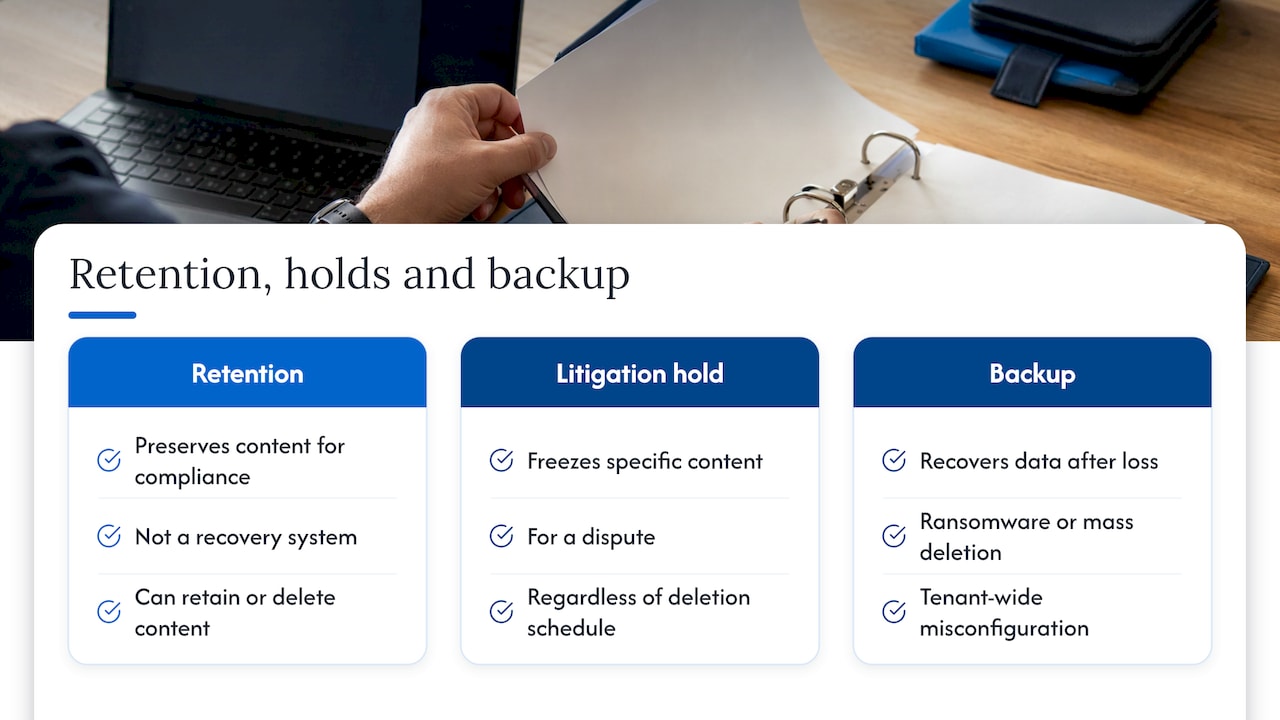
Litigation holds are separate again. A hold freezes specific content for a dispute regardless of any deletion schedule. If you expect a claim, see our Microsoft 365 litigation hold guide, and for regulated email specifically, email archiving compliance.
Our perspective
Most retention problems we would expect to see start the same way: someone turns on a deletion rule to save storage or tidy up, and nobody has written down what the business is required to keep. For a medical practice, a law firm or a mortgage company, the order matters. Schedule first, then scope, then policy.
We design Microsoft 365 administration around prevention, not cleanup after the fact. That means retention periods tied to your HIPAA, SEC, GDPR, SOC 2 or CMMC obligations, a review of policy scope before it goes live, and 24/7 monitoring of the tenant around it. Retention is one layer. Backup, access controls and audit evidence sit beside it, and they should be planned together.
Our approach is flat-rate and transparent, without long-term contracts, so the policy you need next year can be adjusted without renegotiating anything.
Alex
Get the schedule and the policy right the first time
If you are a Southern California practice, firm or lender, we can help you map your retention obligations to Microsoft 365 and administer the result. Our Compliance & Security Audits cover HIPAA, GDPR, SEC, SOC 2 and CMMC, and our Managed IT Services include Microsoft 365 administration, so the policy stays aligned with your tenant as it changes.
Backup sits alongside retention, and our Backup & Disaster Recovery service is the recovery half of the same plan.
A short checklist before you publish
- A written schedule lists each record type and its required period.
- Counsel or your compliance officer has confirmed any period set by HIPAA, SEC, FINRA or state law.
- Scope has been reviewed for every location, including future mailboxes and sites.
- Users have been told what will be deleted and when.
- Your Teams users hold a license that supports Teams retention.
- Backup and holds are planned separately from retention.
- Someone owns a yearly review of the policies.
FAQ
What is the difference between a retention policy and a retention label?
A policy applies the same setting to an entire mailbox, site or Teams location and does not follow content that moves. A label applies to a single item, travels with it within your tenant, and supports event-based starts, disposition review and record marking. Many organizations use a policy for the baseline and labels for exceptions.
How long does a new retention policy take to work?
Not instantly. Exchange's timer job that evaluates the Recoverable Items folder can take up to seven days to run, and expired items are permanently deleted within 14 days of the retention period ending by default. Plan for a delay and avoid judging the result on day one.
Will a retention policy delete files from my computer?
A policy acts on content in Microsoft 365 services such as Exchange, SharePoint, OneDrive and Teams. Files stored only on a local drive are outside its reach. Synced libraries follow the cloud copy.
Does Microsoft 365 retention satisfy HIPAA?
Microsoft's HIPAA whitepaper states that the six-year documentation requirement can be met in Office 365 through archive mailboxes, retention tags and a retention policy assigned to mailboxes. The policy still has to be configured to match your obligations, so confirm the periods in your compliance review.
Can I use retention policies instead of backup?
No. Retention preserves content for compliance and legal needs, while backup restores data after loss or damage. The two are planned together.
Sources
- Automatically retain or delete content by using retention policies, Microsoft Learn
- Learn about retention policies and labels, Microsoft Learn
- Learn about retention for Exchange, Microsoft Learn
- Learn about retention for SharePoint and OneDrive, Microsoft Learn
- Manage retention policies for Microsoft Teams, Microsoft Learn
- Configure Microsoft 365 retention settings, Microsoft Learn
- Privacy Impact Assessment for Microsoft 365, SEC
- HIPAA Compliance, Microsoft Office 365 and Microsoft Teams, Microsoft