
Records management in Microsoft 365 means deciding which documents and emails are business records, how long each kind must be kept, and what happens when that period ends. Microsoft Purview does the enforcing through retention labels, a file plan and disposition review. The tool is the easy part. The hard part is a retention schedule that matches your industry, labels that people actually apply, and settings you can't undo by accident. We set this up for small and mid-size organizations in Southern California as part of managed IT services, so the sections below follow the order we would use for a clinic, law firm or lender.
TL;DR
- Microsoft describes records management as managing regulatory, legal and business-critical records so you can meet obligations, demonstrate compliance and dispose of content when it is no longer required (Microsoft Learn).
- Start with a retention schedule on paper, then bring it into Microsoft 365 through a file plan and retention labels.
- Regulatory-record settings must be enabled with PowerShell first, and an applied regulatory-record label cannot be removed, even by a global administrator.
- There is no universal seven-year rule. Retention periods come from the laws and contracts that apply to each record type.
- Licensing decides which features you can use, so confirm it before you design the plan.
Table of Contents
- What records management means in Microsoft 365
- Who needs a formal records program
- Step 1: Build the retention schedule before you open Purview
- Step 2: Check licensing and permissions
- Step 3: Turn the schedule into a file plan
- Step 4: Create retention labels and decide what counts as a record
- Step 5: Publish labels and automate where you can
- Step 6: Plan for the end of the life cycle
- Records management is not backup
- A rollout plan for a 10 to 100 person organization
- Common mistakes
- How Secure Techies helps
- Our perspective
- FAQ
- Sources
What records management means in Microsoft 365
A record is content you must keep as evidence of what your business did: a signed engagement letter, a patient consent form, a loan file, a board resolution. Most of your files are not records. They are working drafts, duplicates and convenience copies. Records management separates the two so that the first group can be cleaned up and the second is protected.
In Microsoft 365 this work lives in Microsoft Purview. According to Microsoft, Purview provides retention labels, file plans, event-based retention, disposition review, proof of deletion, exports and permissions to manage that lifecycle across documents and email. The content itself stays where your people already work: SharePoint, OneDrive, Exchange mailboxes and Teams.
There are two layers, and it helps to keep them apart:
- Retention policies apply broadly to a workload, for example all Exchange mailboxes or all SharePoint sites.
- Retention labels apply to individual items. Microsoft's lifecycle overview positions labels for exceptions and for records management.
A small firm often needs both. A broad policy keeps everything for a baseline period, and labels carry the longer or stricter rules for the content that is truly a record.
Who needs a formal records program
Every business keeps records, but the pressure differs by industry:
- Healthcare providers keep patient and billing records under HIPAA and state medical-record rules, and must be able to show who touched what.
- Law firms hold client files that have their own retention rules and may be subject to legal holds.
- Banks and mortgage companies keep loan files, disclosures and customer information under federal and state requirements.
- Startups and small businesses usually face contract, tax and employment-record obligations, and want a structure that scales without rebuilding later.
If one of those describes you, the steps below apply. The retention periods themselves come from your counsel, your regulator or your auditor, not from the software.
Step 1: Build the retention schedule before you open Purview
The most common failure we see in the field of Microsoft 365 projects is configuring labels first and thinking about the schedule afterward. Do it in the opposite order.
- List your record types. Examples: client engagement agreements, patient charts, loan applications, personnel files, invoices, vendor contracts, incident reports.
- Assign an owner for each type. One person in the business decides what the record is and when it can go.
- Set the retention period and the trigger. The period can start when the record is created, when it was last modified, or when an event happens, such as a loan paying off, a client matter closing or an employee leaving.
- Decide what happens at the end. Delete it, send it to a person for review, or keep it permanently.
- Cite the reason. Write down the law, regulation or contract behind each period so a future auditor sees why you chose it.
Why "seven years" is not an answer
People searching this topic often ask about a seven-year retention policy. Seven years is a common choice for financial and tax-related documents, but it is not a rule that fits every record. A state records handout from Michigan describes its own Outlook cleanup policy as seven years from the sent or received date, and states that these lifecycle timeframes are not record-retention periods. The distinction is useful for any business: a cleanup timer for mailbox clutter is one thing, and the legally required period for a specific record is another.
For your own schedule, take periods from your attorney, your compliance officer or the regulation that governs the record. Our compliance and security audits cover HIPAA, GDPR, SEC, SOC 2 and CMMC, and the findings give you a documented basis for the periods you choose.
Step 2: Check licensing and permissions
Before designing anything, confirm what your subscription includes. Microsoft's Purview service description explains that Data Lifecycle Management and Records Management use retention policies, retention labels and retention-label policies to enforce retention and deletion settings, lists the license requirements for each feature, and says the users who benefit from a service need a license.
In practice, ask three questions:
- Does every user whose content will carry labels hold a qualifying license?
- Which features do you need now (basic retention) and which later (automatic labeling, disposition review)?
- Does the person configuring Purview have the right role? Records management requires specific permissions.
Licensing changes at renewal and the plan names shift, so read our Microsoft 365 licensing guide and the comparison of Business Premium and E3 when you decide which plan carries your compliance needs.
Step 3: Turn the schedule into a file plan
A file plan is the Purview page where your retention schedule becomes a set of labels. Microsoft says you can use it to bring an existing retention plan into Microsoft 365 or build a new one, incorporating your own schedules and requirements.
The file plan documentation adds three things that matter for a small team:
- You can create labels in bulk from a spreadsheet, so the schedule from Step 1 can be your import file.
- You can export labels to analyze them.
- You can add descriptors beyond the normal label settings, including business function or department, category, authority type and provision or citation.
The citation descriptor is the one auditors like. It records the law or regulation behind a label, right next to the label.
Keep the plan small
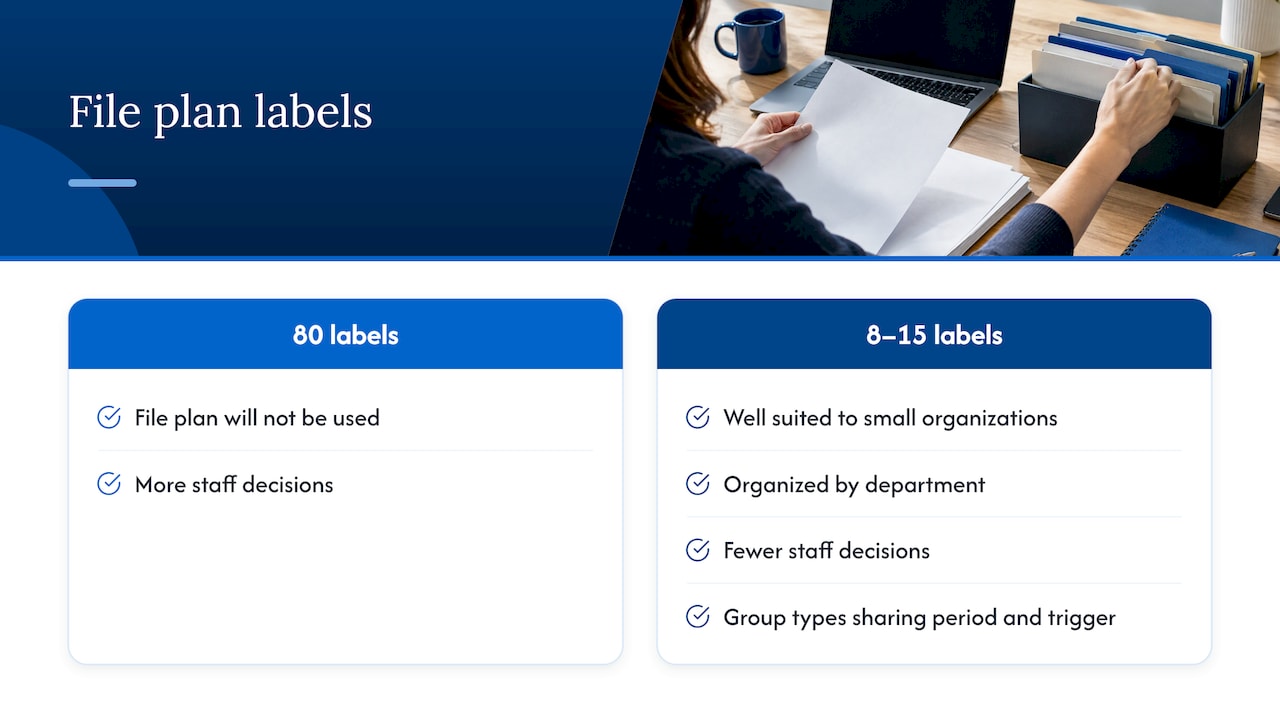
A file plan with 80 labels will not be used. Group record types that share the same period and trigger. Many small organizations are well served by 8 to 15 labels, organized by department. Fewer labels also means fewer decisions for your staff.
Step 4: Create retention labels and decide what counts as a record
A retention label carries a retention period and an action. Microsoft describes how labels can retain or delete individual items and mark content as a record or regulatory record. Labels can be published so people apply them manually, or applied automatically when content meets conditions you set.
The three levels differ in how much they lock:
| Treatment | What it does | Typical use |
|---|---|---|
| Retain or delete only | Keeps or removes the item after the period | Routine business documents |
| Record | Marks the item as a record, with restrictions on editing and deleting | Signed agreements, finalized client or patient documents |
| Regulatory record | Applies the strictest controls, and the label cannot be removed once applied | Content that a regulation says must be unchangeable |
Who can apply a label depends on the workload. Microsoft's page on declaring records notes that for Exchange, any user with write access to the mailbox can apply these labels, and for SharePoint and OneDrive any user in the default Members group can.
A caution on regulatory records
Treat regulatory records as a one-way door. Microsoft states that the settings must first be enabled with PowerShell, and that an applied regulatory-record label cannot be removed, even by a global administrator. Use it only for content where a regulation actually demands that level of immutability, and test the label on a sample site before you publish it widely. Most small businesses never need it, and the ordinary record label is the right choice for the majority of signed documents.
Step 5: Publish labels and automate where you can
Labels that depend on every employee remembering to click do not hold up. The better design uses three methods together:
- Default labels on libraries. A SharePoint library for executed contracts can apply the contract label to everything saved in it.
- Auto-apply rules. Labels can be applied when content matches conditions, such as a sensitive information type or a keyword. The publish and apply guidance from Microsoft advises deciding up front whether the label policy will use static or adaptive scopes, and notes that adaptive scopes must be created first. A static scope names the locations. An adaptive scope selects them by attributes, such as department, so new users and sites are picked up automatically.
- Manual labels for judgment calls. Leave a small set for staff to apply to items that only a person can recognize.
Pair this with sensitivity labels, which control who can read a document, rather than how long it lives. Our guide to sensitivity labels explains how the two sets of labels work side by side, and our DLP setup guide covers stopping records from leaving the organization.
Step 6: Plan for the end of the life cycle
Retention is only half of records management. The other half is disposal, and it is the half most businesses skip. Purview supports disposition review, where a named reviewer approves or extends deletion at the end of the period, and keeps proof of deletion for your files. For records that carry legal or privacy exposure, a person should sign off before content disappears.
Two workload details matter for small organizations:
- Departing employees. Microsoft's lifecycle overview identifies inactive mailboxes as a way to retain mailbox content after an employee leaves. Decide in advance which roles need this, because deleting a user account without a plan can remove email that is a record.
- Legal matters. When a dispute starts, normal deletion has to stop for the content involved. That is the job of a hold, and we explain it in our litigation hold guide.
Records management is not backup
Retention labels keep content from being deleted under the rules you set. They do not replace a separate copy of your data if a mailbox is corrupted, a site is wiped by ransomware or an administrator makes an error. Retention and backup solve different problems, and a compliance-minded organization needs both. We explain the difference in Microsoft 365 backup versus retention, and our backup and disaster recovery service addresses the second half.
A rollout plan for a 10 to 100 person organization
The order below fits the way small teams work and avoids the usual stalls.
- Week 1: inventory. List where records live now: SharePoint sites, OneDrive folders, shared mailboxes, Teams channels, and any file server still in use.
- Weeks 2 and 3: schedule. Draft the retention schedule with the people who own each record type, and confirm the periods with counsel or your compliance officer.
- Week 4: licensing and roles. Confirm licenses and assign the Purview roles.
- Weeks 5 and 6: pilot. Build the file plan, create labels, and publish to one department. Use ordinary record labels, not regulatory ones, in the pilot.
- Weeks 7 and 8: expand. Add default library labels and auto-apply rules, then extend to the other departments.
- Ongoing: review. Look at disposition reviews, new record types and changes in regulations at least once a year.
The timeline is a planning guide, not a fixed duration. A practice with a clean SharePoint structure moves faster than one migrating from years of shared drives.
Common mistakes
- Labels with no schedule behind them. The labels look tidy, but nobody can explain the periods.
- Too many labels. Staff stop choosing, and content ends up unlabeled.
- Applying regulatory-record settings by default. The label cannot be removed, so the choice is permanent.
- No owner for disposition. Review tasks pile up and nothing is ever deleted, which defeats the purpose.
- Ignoring email and Teams. Records are often in mailboxes and chats, not only in document libraries.
- Skipping the Copilot question. If AI tools can search everything a user can open, over-shared records become easy to surface. See our Copilot security guide.
How Secure Techies helps
A records program touches licensing, permissions, SharePoint structure, email, backup and compliance documentation. Our team covers each of those as part of managed IT: Managed IT Services with 24/7 monitoring, Microsoft 365 and Google Workspace administration, and compliance and security audits for HIPAA, GDPR, SEC, SOC 2 and CMMC. Billing is flat-rate and transparent, without long-term contracts, and the work is done by a local Southern California team.
If you want the schedule, file plan and labels set up and kept current by the people who manage the rest of your Microsoft 365 environment, talk to our team about managed IT.
Our perspective
Records management fails when it is treated as a one-time configuration. A schedule is written, labels are built, and two years later a new department is saving contracts in a site nobody labeled.
We prefer the proactive approach. Our focus is preventing problems before they disrupt operations, and for records that means a schedule tied to the regulations you answer to, a small label set people can use, and a regular review of what the policies are doing. Security and compliance come first in how we work, whether the client is a medical practice, a law firm or a lender.
For small and mid-size organizations in Southern California, we think the best result comes from one team that handles the licensing, the Microsoft 365 tenant, the backups and the compliance paperwork together, so that the retention rules and the rest of your IT never contradict each other.
Alex
FAQ
What is the difference between a retention policy and a retention label?
A retention policy applies to a whole workload, such as all mailboxes or all SharePoint sites. A retention label applies to individual items and can also mark them as records. Most organizations use a broad policy for the baseline and labels for the content with specific rules.
Do I need E5 to use records management?
It depends on which features you need. Microsoft publishes licensing requirements for each Purview feature in its service description, and users who benefit from a feature need a license. We can review your current plan against the features in your schedule before you renew.
Can an administrator undo a regulatory record label?
No. Once a regulatory-record label is applied, Microsoft states it cannot be removed, even by a global administrator. Use it only where a regulation requires it, and use a standard record label elsewhere.
Is seven years the standard retention period?
No single period applies to every record. Seven years is a common choice for some financial documents, but the right period depends on the record type and the laws and contracts that govern it. Confirm each period with your attorney or compliance officer.
Sources
- Records management for documents and emails in Microsoft Purview
- Use file plan to manage retention labels
- Publish and apply retention labels
- Declare records by using retention labels
- Data lifecycle and records management overview
- Microsoft Purview service description
- How to Manage Records (State of Michigan)