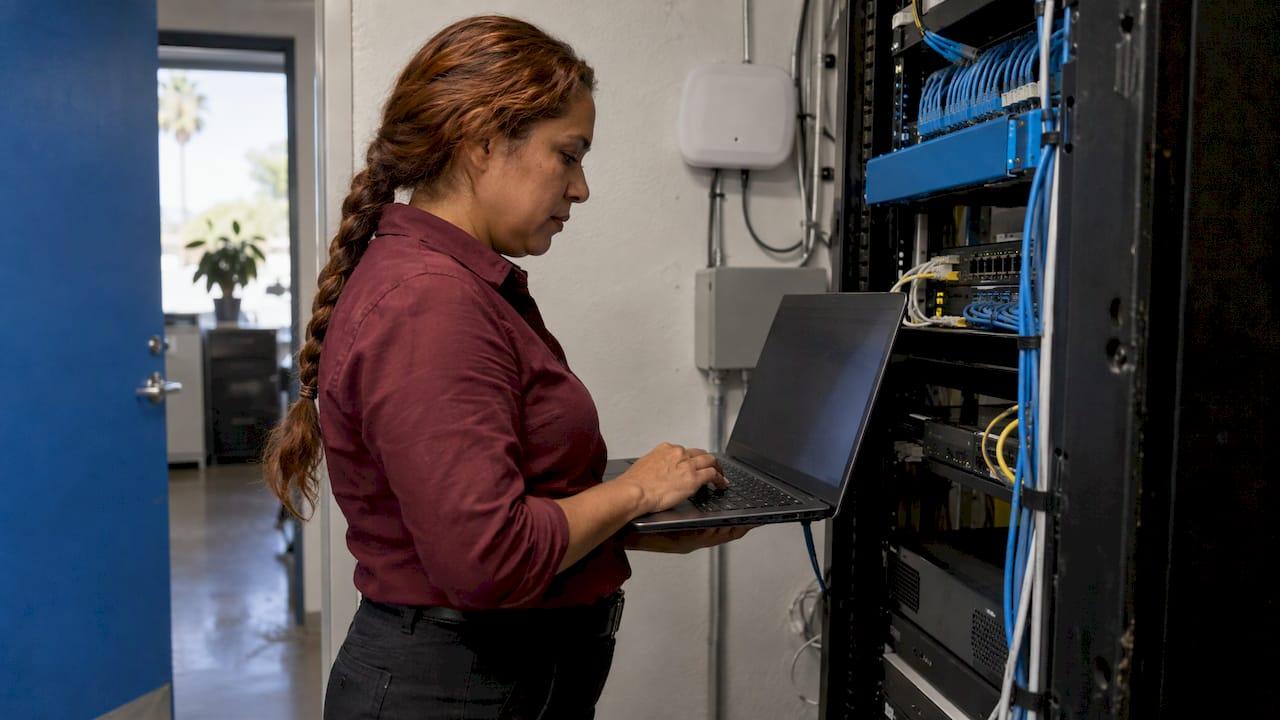
Guest Wi-Fi for a business is a separate wireless network that gives visitors internet access and nothing else. It runs on its own network segment (a VLAN), with its own password, its own address range and a firewall rule that blocks every path to your staff computers, servers, printers and line-of-business systems. A second network name on the same router is not enough. The separation has to be enforced by the network equipment, and that is what a managed network security provider such as Secure Techies builds and monitors for small and mid-size businesses in Southern California.
This guide is for owners and office managers of professional offices, medical practices, law firms, lenders and growing companies. It explains what to build, how to configure it, what a captive portal does and does not do, and what changes when you handle regulated data.
TL;DR
- Guests belong on their own network segment, not just a second Wi-Fi name. CISA tells organizations to keep guest Wi-Fi separate from the main network.
- Use WPA3 encryption where your equipment supports it, a long unique password, and a firewall that blocks guest traffic from reaching internal addresses.
- A captive portal (the login or terms page) records acceptance of your rules. It does not encrypt traffic or isolate guests, so the firewall still does the protecting.
- Healthcare, legal and financial offices should keep guest, staff and server traffic in separate zones and make sure employees never use the guest network for work.
- Review the setup on a schedule and monitor it. A network that was safe at installation drifts as devices and rules change.
Table of Contents
- What guest Wi-Fi means for a business
- How to set up guest Wi-Fi so visitors cannot reach your systems
- Captive portals: what they do and what they do not
- Healthcare, legal and financial offices: extra care
- Guest Wi-Fi best practices at a glance
- Our approach to guest Wi-Fi
- Have your guest network built and monitored
- FAQ
- Sources
What guest Wi-Fi means for a business
A guest network is a separate wireless network for visitors, clients, vendors and anyone without company credentials. Extreme Networks describes it as a network that provides internet access while isolating visitors from the organization's main network, so they cannot reach internal resources or information.
The purpose is simple. You do not control the phones and laptops your visitors bring. One of them may carry malware, and the person holding it may have no idea. If that device sits on the same network as your file server, accounting system or practice management software, it can probe those systems. On a properly separated guest network it can only reach the internet.
Why a second Wi-Fi name is not enough
Many offices simply add a second network name to the same router and call it "Guest." Whether that protects anything depends on how the router handles it. Some devices only put a different label on the same network. Others place guests on a truly separate segment. The only way to know is to check that a device on the guest network cannot reach a computer or printer on the office network.
CISA's guidance on securing enterprise wireless networks (February 2021) directs organizations to use routers with multiple SSIDs (network names) or wireless isolation features, so organizational information is not accessible to guest traffic. In a business setting, that means access points and switches that support VLANs, which are virtual networks that share the same cables but cannot talk to each other unless a firewall rule allows it.

This is also where consumer-grade equipment falls short. A router bought for a home can usually offer a guest option, but it generally cannot carry several segmented networks across your switches and access points. Once an office has more than one access point, or any regulated data, equipment that supports VLANs is the practical baseline.
How to set up guest Wi-Fi so visitors cannot reach your systems
The steps below apply to most business-grade routers, firewalls and managed access points. At each step we note where setups commonly go wrong.
Step 1: Decide which zones you need
Write down what is on your network and who needs to reach what. A small office usually needs at least these zones:
- Staff: workstations and laptops used by employees.
- Guests: visitor phones and laptops, internet only.
- Printers and other devices: printers, cameras, badge readers and smart devices that cannot run security software.
- Servers and storage: anything that holds client, patient or financial records.
- Management: the admin interfaces of your firewall, switches and access points.
Where it goes wrong: offices put printers or conference-room displays on the guest network so that visitors can use them, then forget that those devices often have a path back to staff systems. Decide deliberately which devices guests may reach, if any.
Our guide to business Wi-Fi design covers coverage and capacity planning, which you should settle before you add segmentation.
Step 2: Create a separate guest SSID tied to its own VLAN
Create the guest network name, assign it to its own VLAN and give that VLAN its own address range and its own DHCP scope (the service that hands out IP addresses). Use a name that does not identify your company's internal systems or give away equipment details.
Where it goes wrong: the SSID exists but is mapped to the same VLAN as staff devices. The guest password then works, the internet works, and everything looks fine, while the office network is still exposed.
Step 3: Turn on client isolation
Client isolation stops guest devices from seeing each other. This protects one visitor from another and limits how far a compromised guest laptop can reach. NebraskaCERT's small-office guidance advises unchecking the router setting that lets guests see each other and access the local network, and notes that guest machines then cannot see each other. It also points out that you are trusting the router's firmware to keep the networks apart, which is one reason to keep firmware updated.
Step 4: Set encryption and a strong password
Michigan's cyber response center recommends strong encryption such as WPA3, isolation from the primary network, a unique complex password of 16 characters and a unique SSID for guest networks. Where an older device cannot use WPA3, WPA2 with AES is the fallback. Do not use WEP or open networks without a documented reason.
Where it goes wrong: a short, memorable password that never changes and is printed on every business card. Rotate the guest password on a schedule and when staff who knew it leave. If you display the password in the lobby, our Wi-Fi QR code generator lets visitors join without typing it. For the staff networks, follow sound password management practices and keep router admin passwords out of the default.
Step 5: Block guest access to everything internal with firewall rules
This is the step that actually enforces isolation. The firewall rule for the guest segment should allow traffic to the internet and deny traffic to every internal address range. A default-deny posture, where nothing is allowed unless a rule says so, is easier to audit than a long list of exceptions. Our article on firewall policy best practices explains how to keep rule sets clean as a business grows.
Where it goes wrong: a broad "allow" rule added years ago for a one-off need, such as a visiting vendor who had to reach a printer, stays in place and quietly undoes the separation.
Step 6: Limit bandwidth and give guests their own DNS
A bandwidth cap per guest keeps a visitor's video stream from slowing your staff. Guest devices should also use a public DNS resolver rather than your internal DNS server, so they cannot learn the names of your internal systems. Cisco notes that a captive portal can also limit access to specific sites and block video streaming to keep bandwidth steady, which is one way to apply this limit.
Step 7: Harden the equipment behind it
The CIS small-office checklist lists the basics that apply to the whole network: change default admin passwords, use a non-identifying network name, turn on WPA2 or WPA3, disable WPS (a convenience feature that weakens security), enable the firewall, turn on DNS filtering and disable UPnP. The same guide notes that router guest features can support temporary passwords and schedule restrictions, such as making the network available only during business hours.
Step 8: Test it from the guest side
Connect a phone to the guest network and try to open the router's admin page, a shared folder, a networked printer and an internal web application. All of them should fail. Repeat the test after any change to the network. A written test result is also useful evidence later if an auditor asks how you separate visitors from sensitive systems.
Our guide to guest Wi-Fi security for your office goes through the same ground from the office manager's side, and the restaurant guest Wi-Fi isolation case shows how the separation looks in a working customer-facing business.
Captive portals: what they do and what they do not
A captive portal is the page that appears when a guest joins your Wi-Fi. It can show terms of use, ask for acceptance or an email address, display your branding and set session limits. Cisco's small-business guide notes that portals can display terms of use, support social login, limit access to certain sites and block video streaming.
Mechanically, the network holds each new device in a restricted state and redirects its first web request to the splash page. Once the guest accepts, the controller moves that device to full internet access.
The portal is a policy tool, not a security control
The login page does not encrypt anything and does not isolate guests from your systems. The Electronic Frontier Foundation explains that captive portals work by intercepting connections, which can trigger false certificate warnings that teach users to ignore real ones, and that a login window can make people believe the network is safer than it is. The EFF recommends WPA2 Enterprise where feasible.
The practical conclusion is to use a portal for what it does well: showing your acceptable-use terms, documenting that a guest agreed to them and controlling session length. Rely on VLAN separation and firewall rules for protection. If the portal is hosted on a page of your own website, keep that site maintained too, using a website security checklist.
If you collect email addresses or phone numbers through the portal, you are collecting personal data. Decide what you need, say so in the terms, and keep that data out of systems that hold client records.

Healthcare, legal and financial offices: extra care
A guest network that is built correctly stays outside the systems that hold regulated information. The risk comes from how offices actually behave.
- Staff on the guest network. An employee connects a work laptop to the guest SSID because it is easier, and now work traffic crosses a network with no controls. Give staff their own secure network and make the policy clear.
- Shared infrastructure. If guest and clinical or client traffic run through the same VLAN or the same unmanaged switch, the separation is cosmetic.
- Shared passwords for staff. One password known to everyone cannot tell you who connected. Where you need accountability for access, use individual credentials, such as WPA Enterprise with 802.1X, which gives each person their own login. CISA also recommends certificate-based authentication and multi-factor authentication for network access.
- Monitoring. CISA recommends deploying a wireless intrusion detection or prevention system, which can detect and disconnect rogue access points, evil-twin networks that imitate yours, MAC spoofing and denial-of-service attacks.
For a medical practice, a law firm, a bank or a mortgage company, we recommend a documented network diagram, written separation rules and an audit that confirms the guest zone cannot reach servers, databases or workstations. Our compliance and security audits cover HIPAA, GDPR, SEC, SOC 2 and CMMC requirements, and the guest network is one of the first things an auditor asks about.
Guest Wi-Fi best practices at a glance
| Area | What to do | Why it matters |
|---|---|---|
| Separation | Dedicated VLAN, own address range, own DHCP | Guests cannot reach internal devices |
| Isolation | Client isolation on the guest SSID | One guest cannot attack another |
| Encryption | WPA3 where supported, WPA2 AES otherwise | Protects guest traffic over the air |
| Password | Unique, 16 characters, rotated | Limits who can join and for how long |
| Firewall | Deny guest access to internal ranges | Enforces the separation |
| Bandwidth | Per-device cap | Protects staff performance |
| Portal | Terms, acceptance, session limits | Documents your policy |
| Monitoring | Logs and wireless intrusion detection | Finds rogue devices and misuse |
| Review | Scheduled rule and firmware reviews | Stops configuration drift |
The wireless network security guide goes deeper on the staff side of the network, which is the part guests never see but which carries your most sensitive data.
Our approach to guest Wi-Fi
We treat guest Wi-Fi as part of network security, not as a convenience feature. A visitor's phone is a device we do not control, so our design starts from that fact: guests get the internet, and the firewall decides everything else.
Our network security work covers firewalls and wireless design, and our 24/7 monitoring means a change that weakens the separation is something we are set up to catch, not something found at the next audit. Offices that handle patient, client or borrower data also have compliance duties, and we approach the guest network with those in mind, whether the standard is HIPAA, SEC, SOC 2 or CMMC.
Our billing is flat rate and does not require a long-term contract, so you can fix the network now and judge the service on the work.
Alex
Have your guest network built and monitored
If your office is still running guests on the main network, or on a second Wi-Fi name nobody has tested, our network security solutions cover firewalls and wireless networks, backed by 24/7 monitoring and a dedicated local team in Southern California. We also serve offices through our managed IT services, where network design, help desk support and security sit under one agreement.
We have local pages for network security in Studio City, Calabasas and Glendale, among other areas.
FAQ
Does a business need a separate guest Wi-Fi network?
Yes, if visitors ever connect to your Wi-Fi. A separate guest network keeps unmanaged visitor devices away from your files, servers and printers. CISA's guidance for organizations calls for a guest network that is kept separate from the main network.
Is a different Wi-Fi name and password enough?
Not by itself. The separation depends on whether the equipment puts guests on a different network segment and a firewall blocks access to internal addresses. Test it by connecting a phone to the guest network and trying to reach an internal device or admin page.
Do I need a captive portal?
Only if you want a terms-of-use page, branding, session limits or a record of acceptance. A portal is a policy tool and does not add encryption or isolation. The VLAN and the firewall rules protect the network.
Can employees use the guest network for work?
They should not. Staff devices belong on a secured staff network with its own credentials, particularly in healthcare, legal and financial offices where work traffic includes sensitive records. Writing this into your acceptable-use policy and giving staff a better alternative prevents the habit.
How often should I change the guest password?
Change it on a regular schedule and whenever someone who knew it leaves. Use a unique password of around 16 characters, as Michigan's cyber response center recommends for guest networks, and keep the old one from working on any other network.
Sources
- Securing Enterprise Wireless Networks, CISA
- Guest Wi-Fi, Extreme Networks
- Staying Safer while WFH, NebraskaCERT
- Cyber Snapshot: Uninvited Guests, Securing Guest Networks, Michigan State Police MC3
- Telework and Small Office Network Security Guide, CIS Controls
- How Captive Portals Interfere With Wireless Security and Privacy, Electronic Frontier Foundation
- Website Security Checklist