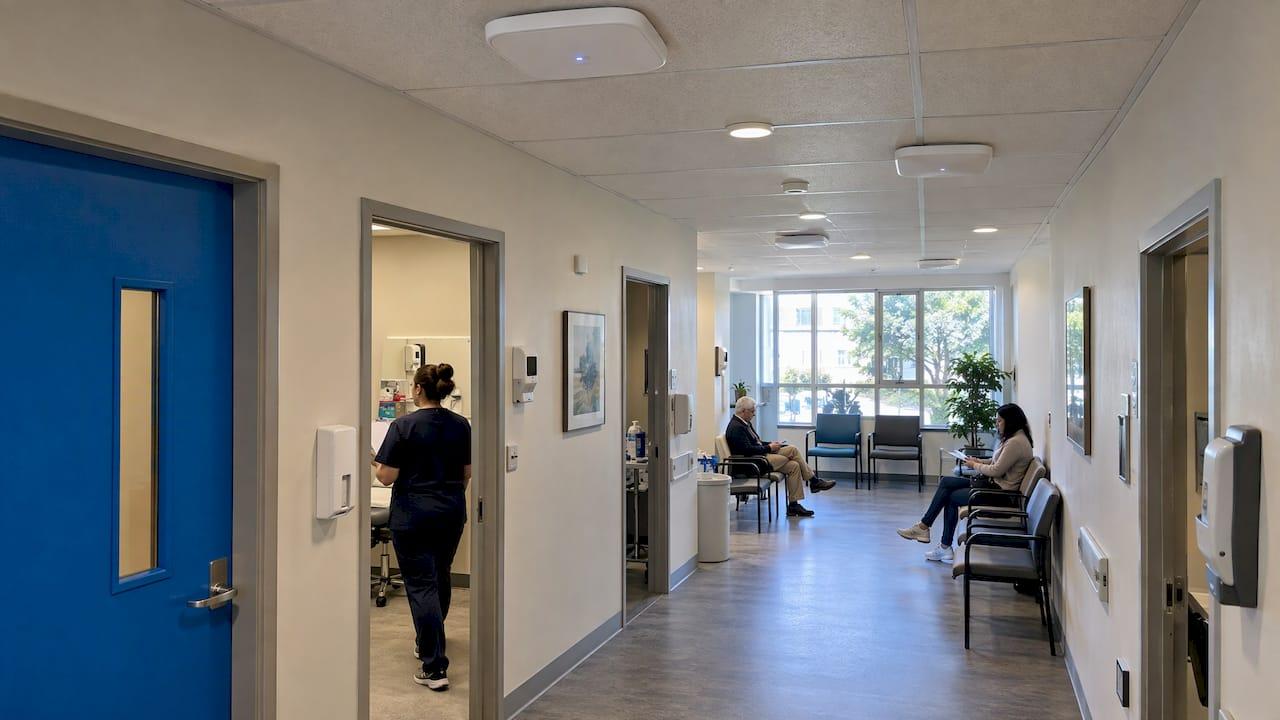
A well-designed business Wi-Fi network starts with requirements, not hardware. Define what the network must do, survey the building, plan for the number of devices instead of the number of people, place access points to match that load, and separate staff, guest and device traffic. This guide walks through each step in the order a design team follows it, with worked numbers you can adapt to your own office.
TL;DR
- Write down applications, devices, coverage areas, users and data sensitivity before choosing any equipment.
- Survey the site with a test access point and a heat-mapping tool, then verify after installation.
- Design for capacity first: count at least two devices per user and keep airtime headroom at peak hours.
- Place access points centrally and high, with overlap in dense areas, and size the switches and uplinks behind them.
- Use WPA3 where supported and keep guests on an isolated network with internet-only access.
Table of Contents
- Start with requirements, not equipment
- Survey the site before you place anything
- Plan capacity before coverage
- Access point placement and density
- Equipment and architecture decisions
- Secure the design from the start
- Test, tune and maintain after installation
- Our perspective on business Wi-Fi design
- Get your Wi-Fi designed and managed locally
- FAQ
- Sources
Start with requirements, not equipment
Most Wi-Fi problems that show up after installation were decided before anyone bought an access point. A requirements document tells the designer what the network has to do. According to Jim Geier's guide to defining wireless network requirements, requirements should cover the applications, the physical environment, coverage areas, end users, client devices, existing infrastructure and the sensitivity of the data crossing the network. The same guide makes a point worth keeping: specific technologies, components and settings are left to the designers once the requirements are agreed.
In practice, a one-page requirements sheet for a small or mid-size office answers these questions:
- Applications: Are staff on video calls all day, using cloud accounting, or running voice over Wi-Fi? Real-time traffic is far less forgiving than email.
- Environment: What are the walls made of? Is there a warehouse, a lab, a kitchen or a server room? Where are the elevators and stairwells?
- Coverage areas: Which rooms need service, and which do not? Conference rooms, reception, patient rooms and outdoor patios often have different needs.
- Users and devices: How many employees, how many regular visitors, and what do they carry? Include printers, scanners, badge readers, tablets, cameras and point-of-sale terminals.
- Existing infrastructure: What cabling, switches, firewall and internet circuit are already in place, and can they carry more?
- Data sensitivity: Does the network carry patient records, client files, financial data or payment information? That decides how strictly traffic must be separated and encrypted.
If the network handles regulated information, put the compliance obligation in the requirements as well. A compliance and security audit is easier to pass when segmentation and encryption were designed in from the start.
Survey the site before you place anything
Floor plans do not show how a building behaves at 2.4 and 5 GHz. A site survey measures it. For a field-ready walkthrough, our WiFi site survey checklist for IT and facilities teams covers what to bring and what to record.
Predictive, passive and active measurements
The survey process described in Netgear's wireless site survey whitepaper has five steps:
- Placement: put a test access point in a likely final location.
- Analysis: record RF and network conditions, including data rate, signal strength, background noise and signal-to-noise ratio.
- Threshold: walk away from the access point until the signal falls below the vendor-specified threshold.
- Boundary: mark the acceptable coverage area on the floor plan.
- Dead spots: identify where the signal drops below what the applications need.
Cisco's site survey guidelines add useful discipline to the scope. The survey should state which frequency bands will be used, which tools will be used, and which areas are in or out of scope, such as stairwells, elevators, electrical rooms, air shafts and mechanical areas. The deliverable should include heat maps of coverage, signal-to-noise ratio and noise floor for every in-scope area, plus spectrum analysis screenshots of any interference sources.
What to look for on the walkthrough
- Neighboring networks on the same channels, which is common in shared buildings and office parks.
- Dense materials: concrete, brick, elevator shafts, glass with metallic coating, and shelving full of paper or product.
- Non-Wi-Fi interference such as microwave ovens and some wireless cameras.
- Locations where an Ethernet cable can actually reach. A perfect access point position with no cable path is not a usable position. Our office network cabling checklist explains how to avoid expensive retrofits.
Plan capacity before coverage
Coverage answers whether a device can see the network. Capacity answers whether the network can serve every device at the same time. A strong signal across the floor does not help if one access point is carrying most of the office.
Count devices, not people
Huawei's WLAN planning guide recommends calculating the number of connected stations as if every user had both a phone and a laptop, which is twice the number of users. Cisco's wireless design guide similarly recommends counting at least two devices per user. Add shared devices on top: printers, tablets, conference-room systems and sensors.
A worked example
Take an office with 60 employees and 8,000 square feet of open and partitioned space. This is an illustration, not a client case.
| Step | Calculation | Result |
|---|---|---|
| Devices from staff | 60 users x 2 devices | 120 devices |
| Shared and IoT devices | Printers, room systems, tablets (assumed) | 15 devices |
| Total associated devices | 120 + 15 | 135 devices |
| Active at peak (assumed) | About half transmitting at once | About 68 active clients |
| Radios needed at 25 active clients each | 68 / 25 | At least 3 radios on 5 GHz |
The 25-client figure comes from NetSpot's capacity planning guide, which describes a typical ceiling of 25 active clients per 5 GHz radio on Wi-Fi 5 and Wi-Fi 6 and recommends keeping airtime below about 70 percent during peaks. The same guide describes the method: profile the client fleet and how many are active at once, multiply the per-user application demand by that concurrency, then convert the payload to airtime by dividing by realistic physical throughput, not the advertised link rate.
The assumed numbers here, the share of devices active and the shared devices, are the ones to replace with your own. If staff run video calls most of the day, raise the active share. If a floor is mostly storage, lower it.
To estimate the internet circuit that feeds the Wi-Fi, use our free office bandwidth calculator. Wi-Fi design and internet sizing are separate questions, and both can become the bottleneck.

Do not forget what sits behind the radios
NetSpot also points out that capacity depends on controller architecture, backhaul throughput and switching capacity. With clean channels and balanced access point loads, performance still flattens out when the infrastructure cannot carry the combined client traffic. In practice, that means the access points should connect to switches with enough ports, adequate power over Ethernet budget and uplinks sized for the load.
Access point placement and density
The placement question gets the most searches, and the honest answer is that rules of thumb give a starting point and the survey gives the final position.
Starting rules
- Central and high. WatchGuard's deployment guide recommends installing access points in a central location, high up, and away from corners, walls and obstructions.
- Roughly 2,000 square feet per access point. The same guide gives about 2,000 square feet as the area one access point can cover, varying with the environment and interference. For our 8,000-square-foot example, that suggests four access points for coverage. The capacity math above needs three radios on 5 GHz, so the two checks agree on a similar count. When they disagree, build for the larger number.
- Overlap in busy rooms. Netgear's high-density design guidance says that when 25 to 30 active users share a coverage area of roughly 500 to 1,000 square feet, the design should follow high-density practices, including overlap so each client sees two to three access points for load balancing.
Signal targets by area type
Huawei's planning guide suggests different minimum signal strengths by area importance: stronger than -60 dBm in VIP areas, stronger than -65 dBm in common areas, and stronger than -70 dBm in simple areas. Use this as a way to rank rooms. Executive conference rooms and the reception desk get the best signal. Storage rooms and corridors can accept less.
Common placement mistakes
- Mounting access points in a closet or above a metal ceiling grid because the cable is already there.
- Placing them at the edge of the building to cover the parking lot, which serves neighbors and passersby more than staff.
- Setting every radio to maximum power. High power on the access point is wasted when phones and laptops cannot transmit back at the same level.
- Planning for desks only, then adding a huddle room or a training room later that fills with 20 people.
Equipment and architecture decisions
The design should outlast the first devices on it. Cisco's campus LAN and wireless design guide describes reliable networks as self-healing, self-defending, self-optimizing and self-aware, and notes that bandwidth needs can double several times over a network's life. For a small business, that translates to a few concrete choices:
- Wi-Fi generation. NetSpot's guide explains that Wi-Fi 6 uses OFDMA and MU-MIMO so multiple devices can communicate in parallel, and Wi-Fi 7 doubles the channel width to 320 MHz. It lists aggregate throughput per access point of about 1.3 Gb/s for Wi-Fi 5, 2.4 Gb/s for Wi-Fi 6 and about 6 Gb/s for Wi-Fi 7. If you are building new, buying at the newer end gives the design more years of use, provided the switches and cabling can keep up.
- Management model. A centrally managed system lets one console handle configuration, firmware and monitoring across all access points. Meraki's architecture documentation recommends at most 800 access points and 10,000 clients per network in a large campus, a ceiling that small and mid-size offices will not approach but that shows central management is designed for scale.
- Cabling. Run Ethernet to every access point. Mesh and wireless backhaul spend airtime that your users need.
- Firewall and switching. The wired side decides whether segmentation and monitoring are possible. Our managed infrastructure services cover design and management of that foundation.
Secure the design from the start
Security belongs in the layout, not in a later patch. Three decisions matter most.
Encryption and authentication
The Canadian Centre for Cyber Security states that WPA3 is currently the strongest encryption for wireless traffic between routers and devices and recommends buying equipment that supports it. For staff networks that carry sensitive data, enterprise authentication, where each user signs in with their own credentials instead of a shared password, lets you remove access when someone leaves without changing the password for everyone.
Separate guests from staff
The same guidance recommends that a guest network provide internet access but no access to the main network. In a design, that means a dedicated guest SSID mapped to its own VLAN, with firewall rules that allow internet traffic and deny everything internal. Our guides on guest Wi-Fi security for your office and a restaurant guest Wi-Fi isolation case show how this plays out in a real layout.
Separate devices you cannot manage
Cameras, printers, thermostats and badge readers rarely support strong authentication. Put them on their own segment so a compromised device cannot reach file servers. For a broader view, read our practical guide to wireless network security for businesses.
Laptops and phones that join the staff network should already be configured safely. A process like this small business device setup, where each device gets an admin account, encryption and management enrollment before use, keeps the Wi-Fi from being the only line of defense.

Test, tune and maintain after installation
A design is a hypothesis until it is measured in the finished building. After installation:
- Run a validation survey. WatchGuard's guide recommends creating another heat map after the access points are mounted to confirm placement gives adequate coverage and signal strength, and checking for channel congestion.
- Test where people work. Walk the floor with a laptop and phone and run a speed test and a video call in the conference rooms, the corners and the busiest desks.
- Load test the busy room. Fill the training room or lobby with the typical number of devices and watch retries and latency.
- Adjust. Change channel width, transmit power and channel assignments, and move or add an access point if a room misses its target.
- Document. Keep the floor plan with access point locations, cable labels, SSIDs, VLANs and credentials in one place.
Then keep watching. Firmware updates, new neighbors on your channels, a new partition wall or a department that doubles in size can all change the picture. Re-survey after any office remodel and review client counts every quarter. Monitoring that alerts on access point outages, high channel utilization and failed authentication catches problems before staff report them. This is the part of Wi-Fi that most small offices have nobody to own, and it is where ongoing managed IT services earn their keep.
Our perspective on business Wi-Fi design
We see the same pattern in offices that call us after Wi-Fi has become a daily complaint: the network was bought, not designed. Access points were placed where the cable already ended, guests shared the staff network, and nobody was watching the controller.
Our approach is preventative. We define requirements with the people who use the space, survey the building, size the network for devices and peak load, and build segmentation into the layout so a guest laptop or a camera never sits next to a file server. Then we monitor around the clock so that a failing access point or a congested channel is handled before it interrupts work.
For healthcare practices, law firms and financial offices in Southern California, the wireless network carries regulated data. We design with HIPAA, SEC and CMMC expectations in mind, and we document what we built so audits are straightforward. Good Wi-Fi design is mostly quiet work done early. When it is done well, nobody notices it, and that is the goal.
Alex
Get your Wi-Fi designed and managed locally
Secure Techies designs, secures and monitors business networks for small and mid-size organizations in Southern California. Our network security solutions cover firewalls and wireless design, and our managed IT services add 24/7 monitoring and help desk support so the network stays healthy after launch.
If you are planning a new office, a move or a rebuild of a network that has outgrown its original setup, contact us through securetechie.com and we will start with a survey and a requirements conversation.
FAQ
How many access points does an office need?
Start with coverage and capacity separately, then use the larger number. A common starting point is about 2,000 square feet per access point, and a typical ceiling of 25 active clients per 5 GHz radio. Offices with dense seating, conference rooms or many devices per person usually need more than the area-based figure. A site survey confirms the final count.
Is Wi-Fi 7 necessary for a small business?
Not always. Wi-Fi 6 handles many parallel devices well, and the wired network and internet circuit often limit performance first. Wi-Fi 7 makes sense for new builds that should stay current for years, as long as switches, cabling and clients are ready to use the extra speed.
Should guests use the same Wi-Fi as employees?
No. Guests should join a separate network that provides internet access only, with firewall rules that block access to internal systems. This protects staff devices, servers and shared files from unmanaged guest devices.
How often should we re-evaluate our Wi-Fi design?
Review it after any remodel, office move or significant headcount change, and check client counts and channel utilization at least quarterly. Ongoing monitoring helps catch gradual capacity problems before staff notice slowdowns.
Sources
- How to: Define Wireless Network Requirements
- Wireless Site Surveys: The Secret to Great WLAN Coverage (Netgear)
- Understand Site Survey Guidelines for WLAN Deployment (Cisco)
- Requirements Collection, WLAN Network Planning Guide (Huawei)
- Plan Wi-Fi Capacity (NetSpot)
- WatchGuard Wi-Fi Cloud AP Deployment Guide
- Best Practices for High Density Wireless Network Design (Netgear)
- Campus LAN and Wireless LAN Design Guide (Cisco)
- Meraki Wireless for Enterprise Best Practices: Architecture
- Protecting your organization while using Wi-Fi (Canadian Centre for Cyber Security)