
Microsoft Entra Conditional Access is the Zero Trust "if-then" policy engine that evaluates identity, device, location, and risk signals in real time to allow, block, or apply controls to every sign-in attempt across your tenant. Before you configure a single policy, take these four steps now:
- Confirm your license. Conditional access requires Microsoft Entra ID P1 at minimum. Risk-based controls require P2.
- Create at least two break-glass accounts. These cloud-only emergency access accounts must be excluded from all policies to prevent a full-tenant lockout.
- Enable report-only mode first. Never push a new policy straight to enforcement. Report-only lets you review sign-in logs and measure impact before users are affected.
- Identify a pilot group. Select a representative cross-section of users and devices, not just IT admins, to validate policy behavior before broad rollout.
Three named entities anchor every decision in this guide: Microsoft Entra ID (the identity platform), Microsoft 365 (the primary application suite being protected), and the Zero Trust framework (the security model that makes conditional access necessary).
Table of Contents
- How do conditional access policies actually evaluate sign-ins?
- What signals and conditions can you use in a policy?
- What decisions can Conditional Access enforce?
- What do common conditional access policy templates look like?
- How do you create and test a policy in the Microsoft Entra admin center?
- Which license do you need for Conditional Access?
- How do you govern policies after deployment?
- How do you troubleshoot when a policy blocks legitimate access?
- How Securetechie implements Conditional Access for clients
- Key Takeaways
- Why most organizations get Conditional Access wrong
- Securetechie helps you deploy and govern Conditional Access correctly
- Useful sources
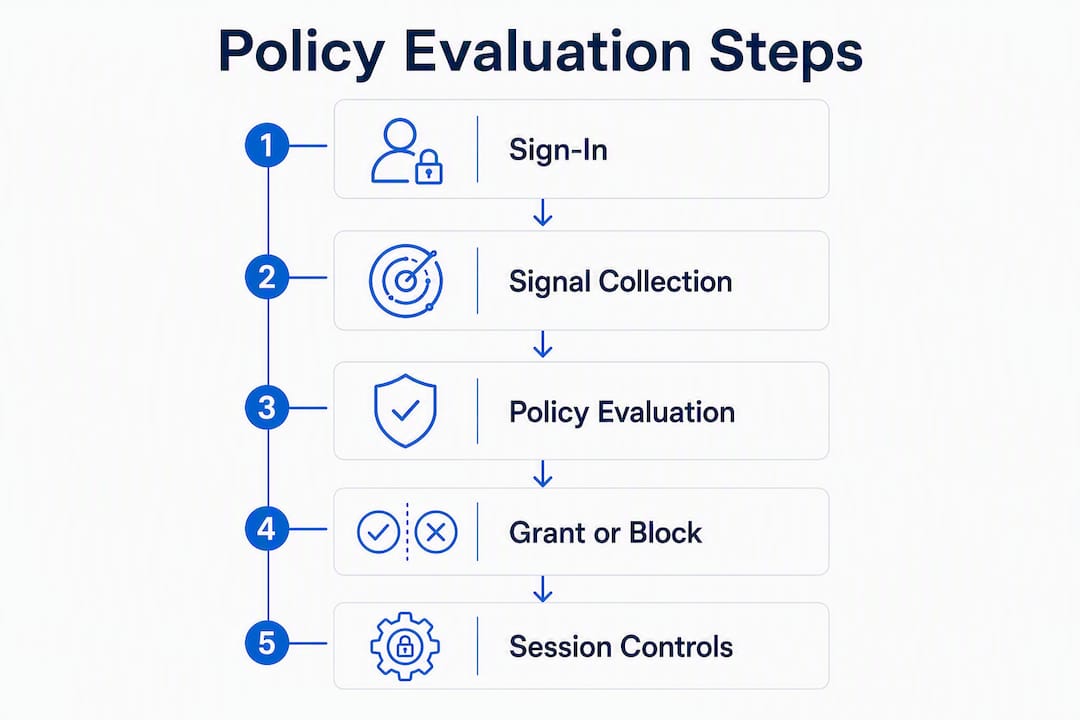
How do conditional access policies actually evaluate sign-ins?
Conditional Access does not evaluate access once at login and walk away. Every sign-in triggers a real-time evaluation of signals, and the outcome can change based on what those signals report at that exact moment.
The engine works in two phases. Phase 1 collects session details: who is signing in, from which device, from which network location, using which client application, and what the current sign-in and user risk scores are. Phase 2 enforces outcomes. If multiple policies apply to the same sign-in, all of them must be satisfied. Grant controls are presented to the user in a defined order until each requirement is met or access is blocked entirely.
The practical implication: a user signing in from a compliant corporate laptop on a trusted network may pass through silently, while the same user signing in from an unmanaged personal device on a coffee shop network could be prompted for MFA, required to enroll the device, or blocked outright. The policy did not change. The signals did.
Admins access Conditional Access controls through the Microsoft Entra admin center at entra.microsoft.com, under Protection > Conditional Access. The overview blade shows active policies, their state (report-only, on, or off), and a sign-in log feed that is the primary telemetry source for validating policy behavior. The "What if" tool, also in that blade, lets you simulate a sign-in with specific parameters before any policy goes live.
What signals and conditions can you use in a policy?
Every conditional access policy is built from assignments (the "if") and controls (the "then"). Assignments combine using AND logic: a sign-in must match all configured conditions before the policy applies. Multiple policies can apply to the same sign-in simultaneously, and all of them enforce.

| Condition Category | What It Evaluates | Typical Use Case |
|---|---|---|
| Users & groups | Specific users, groups, roles, or all users | Scope a policy to admins, guests, or a pilot group |
| Applications / resources | Specific apps, all cloud apps, or Microsoft 365 suite | Protect Exchange, SharePoint, Teams, or admin portals |
| Device platform | iOS, Android, Windows, macOS, Linux | Apply stricter controls to mobile or unmanaged platforms |
| Network / location / IP | Named locations, trusted IPs, countries | Block access from high-risk geographies or untrusted networks |
| Client app | Modern auth clients, browser, legacy auth (Exchange ActiveSync, other clients) | Block legacy authentication protocols that bypass MFA |
| Sign-in risk | Low, medium, high (requires P2) | Require MFA or block when Identity Protection flags anomalous behavior |
| User risk | Low, medium, high (requires P2) | Force password change when a user account shows compromise signals |
| Filters for devices | Device attributes (compliance state, join type, custom attributes) | Target specific device configurations without broad platform rules |
| Authentication context | Step-up authentication for sensitive resources | Require phishing-resistant MFA for privileged operations |
Pro Tip: Group applications by function rather than creating one policy per app. Microsoft documents a tenant limit of 240 Conditional Access policies, and per-app policy sprawl is the fastest way to approach that ceiling. Use the Microsoft 365 app grouping for the full suite and reserve individual app targeting for resources with genuinely distinct risk profiles.
Service dependencies matter here. Teams relies on Exchange Online and SharePoint for core functionality. If you target Teams with a compliant-device requirement but leave Exchange and SharePoint unprotected, users can bypass the control by accessing those services directly. Targeting the Microsoft 365 app group covers the suite consistently and closes that gap.
What decisions can Conditional Access enforce?
The three primary outcomes are Block, Grant with controls, and Session controls. Each serves a different risk profile, and choosing the wrong one for a scenario creates either a security gap or unnecessary user friction.
Grant controls
When access is granted, one or more of the following requirements can be enforced:
- Require multifactor authentication — the most common grant control; prompts for a second factor via Microsoft Authenticator, FIDO2 key, or other registered method
When multiple grant controls are selected, you choose whether the user must satisfy all of them or one of them. The enforcement order for "require one" scenarios follows the order in which controls are listed in the policy, and the user is prompted until one requirement is satisfied or access is blocked.
Session controls
Session controls apply after access is granted and govern what the user can do within the session:
- Conditional Access App Control (via Microsoft Defender for Cloud Apps) — proxies the session to block downloads, restrict copy/paste, or apply real-time monitoring
- Sign-in frequency — forces reauthentication after a defined interval, useful for sensitive applications
- Persistent browser session — controls whether the browser session persists after the window closes
Block vs. progressive controls
Block is appropriate for scenarios with no legitimate access path: legacy authentication protocols, access from sanctioned countries, or sign-ins from known malicious IP ranges. For everything else, progressive controls (MFA first, then compliant device, then session restrictions) reduce friction while still enforcing security requirements. Blocking too broadly generates support tickets and pushes users toward workarounds.
What do common conditional access policy templates look like?
Templates are starting points. Test every one in report-only mode before enforcement, and validate against your specific user population and device inventory.
Core policy templates
-
Require MFA for all administrators Assignments: All users with any admin role. Applications: All cloud apps. Grant: Require MFA. This is the single highest-impact policy in most tenants and should be the first one enforced.
-
Block legacy authentication Assignments: All users. Applications: All cloud apps. Conditions: Client apps = Exchange ActiveSync and other legacy clients. Grant: Block. Legacy protocols cannot satisfy MFA challenges and are a primary vector for credential-stuffing attacks.
-
Require compliant device for sensitive data Assignments: All users (or a scoped group). Applications: SharePoint Online, Exchange Online, or the Microsoft 365 suite. Conditions: Device platforms = all. Grant: Require compliant device OR require hybrid joined device. Exclude break-glass accounts.
-
Protect the Microsoft 365 suite Assignments: All users. Applications: Microsoft 365 app group (covers Exchange, SharePoint, Teams, OneDrive). Grant: Require MFA. This single policy covers the suite without requiring per-app policies for each service.
-
Conditional access for external guests and B2B collaboration Assignments: Guest and external users. Applications: SharePoint Online or specific collaboration apps. Grant: Require MFA. Because guest accounts originate in external tenants, device compliance is often impractical; MFA is the appropriate control.
-
Require MFA for risky sign-ins (P2) Assignments: All users. Applications: All cloud apps. Conditions: Sign-in risk = medium or high. Grant: Require MFA and require password change for high risk. This policy requires Microsoft Entra ID P2 and Identity Protection.
Automation with PowerShell and Microsoft Graph API
For tenants with multiple environments or a need for repeatable deployments, the Microsoft Graph API supports full policy lifecycle management: create, read, update, and delete policies programmatically. The Microsoft.Graph.Identity.SignIns PowerShell module exposes the same endpoints. A practical automation pattern is to maintain policies as JSON definitions in source control, deploy them via a pipeline, and use report-only state as the default for any newly deployed policy.
Implementation checklist before enforcement:
- Run the policy in report-only for at least one week
- Review sign-in logs daily for unexpected blocks or gaps
- Confirm break-glass accounts are excluded and tested
- Validate that service dependencies (Teams/Exchange/SharePoint) are covered consistently
- Document the policy owner, business justification, and review date
How do you create and test a policy in the Microsoft Entra admin center?
Microsoft advises running every new policy in report-only mode for at least one week before switching to enforcement. That guidance exists because the gap between what you intend a policy to do and what it actually does in your tenant is often wider than expected.
Step-by-step policy creation
- Sign in to
entra.microsoft.comand navigate to Protection > Conditional Access > Policies. - Select New policy and give it a descriptive name. A consistent naming convention (e.g.,
CA-[Scope]-[Control]-[Environment]) makes the policy list manageable as it grows. - Under Assignments > Users, select the target users, groups, or roles. Add your break-glass accounts to the Exclude tab immediately.
- Under Assignments > Target resources, select the applications or the Microsoft 365 app group.
- Under Conditions, configure the signals that should trigger the policy: device platforms, locations, client apps, and risk levels as appropriate.
- Under Access controls > Grant, select the required controls and choose whether all or one must be satisfied.
- Under Access controls > Session, add session controls if needed.
- Set the policy state to Report-only. Never set it to On for a new policy without prior report-only validation.
- Save the policy.
Using the "What if" tool
The "What if" tool is in the Conditional Access blade under Troubleshooting + Support. Enter a user principal name, a target application, and optional parameters such as device platform, IP address, or sign-in risk level; the tool returns which policies would apply and what outcome each would produce. Run it before enabling report-only and again before switching to enforcement.
Reading report-only logs
In the Microsoft Entra sign-in logs, filter by Conditional Access and look at the Report-only column. Each entry shows whether the policy would have resulted in success, failure, or not applied. Entries marked "Report-only: Failure" are the ones to investigate before enforcement.
Administrative best practices
- Keep policy names consistent and descriptive; include the control type and scope in the name
- Assign an owner to every policy and record it in your policy inventory
- Stay well below the 240-policy tenant limit by grouping apps and users before creating new policies
- Use groups rather than individual user assignments to keep policies maintainable
- Tag policies with a review date and business justification in the description field
Pro Tip: Do not rely solely on IT admin accounts for testing. Use representative pilot groups that include standard users, mobile device users, and remote workers to surface policy gaps that admin accounts would never trigger.
Which license do you need for Conditional Access?
Microsoft Entra ID P1 is the minimum license for Conditional Access. P2 unlocks risk-based controls through Identity Protection. Microsoft 365 Business Premium includes Conditional Access at a P1-equivalent level, making it the practical entry point for most small and mid-size organizations.
| Feature | Entra ID P1 | Entra ID P2 | Microsoft 365 Business Premium |
|---|---|---|---|
| Core Conditional Access (MFA, compliant device, location) | Yes | Yes | Yes (P1-equivalent) |
| Sign-in risk conditions | No | Yes | No |
| User risk conditions | No | Yes | No |
| Identity Protection integration | No | Yes | Partial |
| Conditional Access App Control (Defender for Cloud Apps) | Add-on | Add-on | Add-on |
| Conditional Access Optimization Agent | No | Yes | No |
| Session controls (sign-in frequency, persistent browser) | Yes | Yes | Yes |
A few practical notes on licensing:
- When licenses expire, existing policies remain active but cannot be edited or created. This creates a governance risk: policies may drift out of alignment with your current environment without any warning.
- P2 is required for any policy that uses sign-in risk or user risk conditions. If your tenant has a mix of P1 and P2 users, risk-based policies only apply correctly to P2-licensed accounts.
- Microsoft 365 Business Premium is often the most cost-effective path for organizations under 300 users who need Conditional Access alongside Intune device management and Defender for Business.
For a full license comparison and purchase guidance, the Microsoft Entra licensing overview is the authoritative reference.
How do you govern policies after deployment?
Governance prevents security gaps and reduces user friction over time. A policy that was accurate at deployment can become a liability six months later if the organization's structure, applications, or risk profile has changed and nobody has reviewed it.
Governance checklist
- Quarterly policy reviews: audit every active policy against current user groups, application inventory, and business requirements
- Policy inventory: maintain a spreadsheet or ITSM record with policy name, owner, creation date, last review date, and business justification
- Assigned owners: every policy must have a named owner responsible for its accuracy and renewal
- Exception management: document every exclusion with a business justification, an expiration date, and a rollback plan; never make permanent exclusions without a formal record
- Audit logging: retain Entra sign-in logs and audit logs for at least 90 days (longer for compliance frameworks like HIPAA or SOC 2)
- Change management: route all policy changes through a change advisory process, especially for policies that affect all users or block access
Roles and responsibilities
| Role | Responsibility |
|---|---|
| Policy owner | Maintains accuracy, reviews quarterly, approves exceptions |
| Approver (security lead / CISO) | Signs off on new policies and exception requests |
| Tester | Validates policy behavior in report-only before enforcement |
| Help desk | Handles user lockout tickets, escalates to policy owner |
| Auditor | Reviews logs and exception records for compliance evidence |
Emergency changes follow a separate track: use break-glass accounts to regain access, disable the offending policy, document the incident, and restore the corrected policy through the standard change process within 24 hours.
Pro Tip: Require every exception request to include three fields: business justification, expiration date (maximum 90 days), and a named rollback plan. Exceptions without expiration dates become permanent by default, and permanent exceptions are where security programs quietly erode.
How do you troubleshoot when a policy blocks legitimate access?
The most common causes of unexpected blocks are misconfigured exclusions, conflicting policies, targeting the wrong application, legacy authentication gaps, and missing break-glass accounts. Start with the sign-in logs before touching any policy.
Diagnostic steps
- Collect the user principal name, exact timestamp, device OS, client application, and IP address from the affected user.
- Open the Entra sign-in logs and filter by that user and timestamp. Locate the sign-in event and open the Conditional Access tab.
- Review which policies applied, which conditions matched, and what outcome each policy produced. Look for "Failure" entries and note the specific control that was not satisfied.
- Run the "What if" tool with the same parameters to confirm the expected behavior.
- Check whether the user's device is enrolled and compliant in Intune if a compliant-device control is involved.
- Verify that the user's group memberships match the policy assignments.
Service dependency pitfalls
Targeting Teams without also targeting Exchange Online and SharePoint is one of the most common configuration mistakes. Because Teams relies on both services for calendar, email, and file storage, a user blocked from Exchange or SharePoint will experience broken functionality inside Teams even if the Teams policy appears correct. The fix is to target the Microsoft 365 app group or to apply consistent policies across all three services.
When you target "All cloud apps" with a Block control, some critical Microsoft service endpoints cannot be excluded and will be blocked. Always test Block-all policies in report-only for at least one week, and confirm that your break-glass accounts are excluded before enforcement. A misconfigured block policy on all cloud apps can lock every user out of the tenant simultaneously.
Emergency playbook
- Sign in with a break-glass account (these should be cloud-only accounts excluded from all policies).
- Navigate to Conditional Access and set the offending policy to Off or Report-only.
- Confirm that affected users can sign in again.
- Document the incident: what policy was involved, what the impact was, and what change was made.
- Investigate root cause using sign-in logs before re-enabling any modified version of the policy.
- Re-enable the corrected policy in report-only mode and validate for at least 48 hours before returning to enforcement.
How Securetechie implements Conditional Access for clients
Securetechie's Conditional Access engagements consistently produce three measurable outcomes: a reduction in risky sign-in events, fewer help desk tickets related to account compromise and MFA enrollment issues, and a documented compliance posture that satisfies audit requirements for frameworks such as HIPAA, SOC 2, and CMMC.
The implementation process follows a structured sequence:
- License review: — confirm that every user who needs Conditional Access has an appropriate Entra ID license or that Microsoft 365 Business Premium covers the required features.
The most common finding in Securetechie's discovery engagements is not a missing policy. It is a policy that was created correctly, never reviewed, and is now targeting a group or application that no longer reflects the organization's current structure. Policy drift is a governance failure, not a technical one.
For organizations that need hands-on help with Conditional Access configuration, pilot deployment, or ongoing governance, Securetechie's compliance and security audit services include a full Conditional Access review as part of the Microsoft 365 security assessment.
Key Takeaways
Conditional Access is the Zero Trust policy engine that every Microsoft 365 tenant needs configured, tested, and governed before it can be considered secure.
| Point | Details |
|---|---|
| Enable report-only first | Run every new policy in report-only for at least one week before switching to enforcement. |
| Confirm P1 or P2 licensing | P1 covers core controls; P2 is required for sign-in and user risk conditions via Identity Protection. |
| Create break-glass accounts | Maintain at least two cloud-only emergency accounts excluded from all policies to prevent tenant lockout. |
| Group apps to stay under the 240-policy limit | Use the Microsoft 365 app group instead of per-app policies to avoid policy sprawl and tenant ceiling issues. |
| Schedule quarterly governance reviews | Assign a policy owner, document exceptions with expiration dates, and review the full policy inventory every quarter. |
| Securetechie for managed deployment | Securetechie handles discovery, pilot, staged enforcement, and governance handover for Conditional Access in Microsoft 365 environments. |
Why most organizations get Conditional Access wrong
The conventional wisdom on Conditional Access is that it is primarily a technical problem. Get the conditions right, pick the correct grant controls, and you are done. That framing misses the larger issue.
The policies themselves are not the hard part. Microsoft's templates are well-documented, the admin center is functional, and the logic is straightforward once you understand the signal model. What organizations consistently underestimate is the governance layer. A policy configured correctly in January and never reviewed is a liability by July. User groups change. Applications are added. Devices fall out of compliance enrollment. The policy keeps enforcing against a reality that no longer matches its original design.
The second underestimated factor is the relationship between security and productivity. Blocking legacy authentication is the right call. Requiring MFA for all administrators is non-negotiable. But applying a compliant-device requirement to all users without first confirming that every user has a path to device enrollment is how you generate 200 help desk tickets in a single morning. The Zero Trust model does not mean "block everything by default." It means verify explicitly, use least-privilege access, and assume breach. Those are design principles, not a license to create friction without a plan to resolve it.
The organizations that get Conditional Access right treat it as a program, not a project. They deploy carefully, test thoroughly, assign ownership, and review regularly. The ones that struggle treat it as a one-time configuration task and move on.
Securetechie helps you deploy and govern Conditional Access correctly
Misconfigured access policies are one of the leading causes of both security incidents and unnecessary help desk load in Microsoft 365 environments. Securetechie's managed cybersecurity services include end-to-end Conditional Access deployment: discovery, license review, pilot configuration, staged enforcement, and a governance handover that leaves your team with a documented policy inventory and a quarterly review schedule.
For organizations in Southern California that need a structured assessment before deployment, Securetechie's Microsoft 365 security audit identifies policy gaps, conflicting rules, and licensing mismatches before they become incidents. The engagement covers your full Conditional Access posture alongside MFA enrollment, device compliance, and audit log configuration.
The engagement timeline runs from discovery through governance handover in four to six weeks for most small and mid-size tenants. Contact Securetechie to schedule your Microsoft 365 security assessment and get a clear picture of where your access policies stand today.
Useful sources
The following references are the primary documentation and service pages used throughout this guide. Microsoft Learn links are authoritative admin documentation; the Securetechie links point to relevant service and resource pages.
Microsoft documentation (admin and licensing):
- Microsoft Entra Conditional Access overview
- Concepts: Conditional Access policies
- Plan your Conditional Access deployment
- Microsoft Entra licensing overview
- Directory service limits and restrictions (240-policy tenant limit)
- Conditional Access policy block example and emergency access guidance
- Conditional Access conditions reference
- Common Conditional Access policy templates
- Microsoft Entra Conditional Access capabilities
Securetechie resources:
- Microsoft 365 security audit and readiness check
- Compliance and security audits (HIPAA, CMMC, SOC 2)
- Managed cybersecurity services
- Zero Trust security for small business
- MFA for business